Gmail Workflow Automation
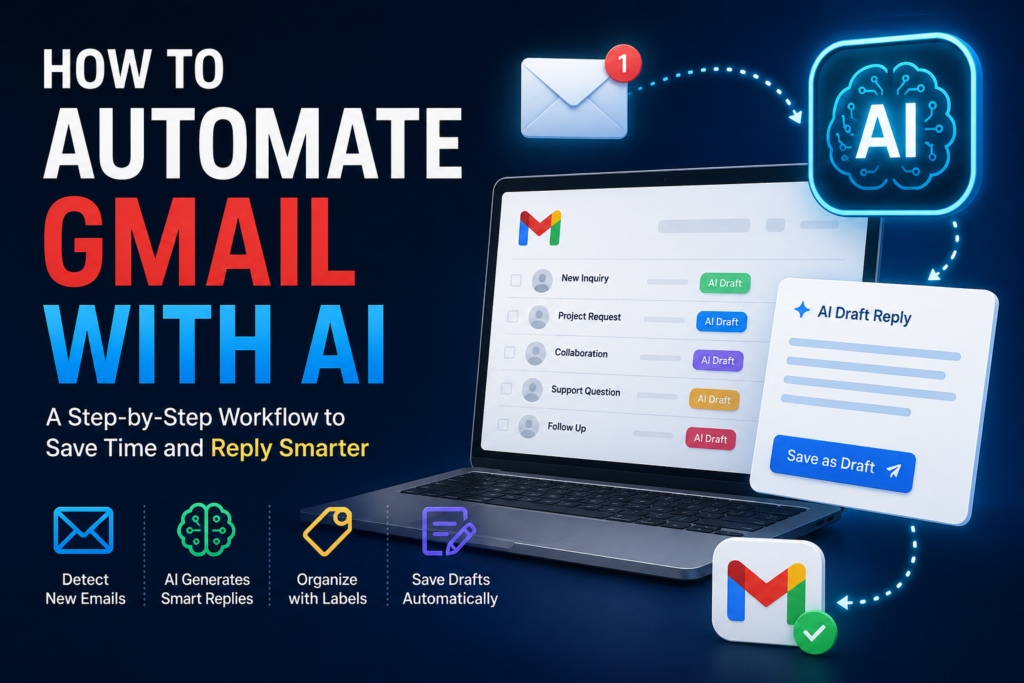
Gmail workflow automation is most useful when it removes repetitive inbox work without removing your control. Instead of trying to automate everything, start with small workflows that organize messages, prepare work, and surface what needs your attention.
This resource gives you five practical Gmail workflows you can implement with Gmail filters, an automation platform such as n8n, Make, or Zapier, or a custom integration using the Gmail API. Each workflow comes with a real downloadable asset so you can configure the system instead of only reading about it.
| What you get Five reusable assets: an email-triage workflow pack, a draft-reply workflow pack, a lead-capture spreadsheet, an attachment-routing workflow pack, and a follow-up tracker. |
How Gmail Workflow Automation Works
Most useful Gmail workflows follow the same simple pattern:
TRIGGER — a new message arrives or a message matches a condition
INPUT — sender, subject, body, labels, attachments, or thread information
PROCESS — deterministic rules and, when useful, AI classification or extraction
VALIDATION — check confidence, required fields, duplicates, and risky actions
OUTPUT — label, draft, spreadsheet row, saved attachment, or reminder
HUMAN REVIEW — approve customer-facing replies or other consequential actions
FINAL ACTION — send, route, assign, archive, or follow up
Gmail itself can filter incoming mail using search criteria and then label, archive, star, delete, or forward matching messages. For deeper workflows, Gmail’s API can read and organize mailbox data, work with drafts, retrieve attachments, and support programmatic processing.
1. AI Email Triage Workflow
Use this when your inbox contains a mix of leads, support requests, invoices, newsletters, internal messages, and low-priority notifications.
| Workflow New email → basic rule check → classify intent/priority → validate result → apply label → urgent items stay visible for review. |
Keep simple routing deterministic whenever possible. For example, known billing senders or exact subject patterns can be handled with Gmail filters. Use AI only where the meaning of the email must be interpreted.
Download asset: AI Email Triage Workflow Pack — classification schema, prompt, label plan, test cases, and setup checklist.
2. AI Draft Reply Workflow
This workflow prepares replies but does not automatically send them. That makes it appropriate for client questions, support messages, inquiries, and routine follow-ups where a human should still approve the final wording.
| Workflow New message → extract request → generate draft → check tone/facts → human review → send manually. |
A draft-first design is safer than blind auto-send. Gmail’s API supports creating drafts, and automation tools can also work with Gmail messages and replies. Keep the final send step under human control for customer-facing or sensitive communication.
Download asset: AI Draft Reply Workflow Pack — response prompt, review checklist, safe-output schema, and test matrix.
3. Gmail Lead Capture Workflow
When potential customers contact you by email, the useful information is often trapped inside message bodies. This workflow converts an inquiry into structured lead data.
| Workflow Lead email → extract contact + need + priority → validate required fields → add row to lead tracker → assign next step. |
The spreadsheet in this pack gives you a ready structure for capturing the sender, company, request, priority, owner, next action, status, and due date. The workflow can be implemented manually first and automated later.
Download asset: Gmail Lead Capture Template — editable XLSX with dropdowns, status tracking, and a simple lead-priority score.
4. Gmail Attachment Routing Workflow
Attachments are easy to lose when they remain buried in email threads. This workflow identifies approved file types, applies naming rules, and routes files to the correct destination.
| Workflow Email with attachment → inspect sender/type → reject unsafe or unexpected files → rename → save to destination → log result. |
Do not automatically open unknown attachments or route every file without checks. Use an allowlist for expected file types and trusted senders, and keep a review path for anything outside the normal rules.
Download asset: Gmail Attachment Routing Workflow Pack — routing matrix, naming standard, security checks, and test cases.
5. Gmail Follow-Up Reminder Workflow
A follow-up system solves a different problem: not forgetting conversations that still need a reply or a next action.
| Workflow Conversation identified → record last inbound/outbound date → set follow-up date → review due items → close or reschedule. |
The downloadable tracker gives you a lightweight system before you build a full automation. Once the manual logic works, connect the same fields to your automation platform.
Download asset: Gmail Follow-Up Tracker — editable XLSX with status dropdowns, due dates, waiting-day formulas, and a review queue.
Which Workflow Should You Build First?
| Problem | Start With | Human Review? |
| Inbox is chaotic | AI Email Triage | For low-confidence classifications |
| Replies take too long | AI Draft Reply | Yes, before sending |
| Leads are lost in email | Lead Capture | Review extracted fields |
| Files get buried | Attachment Routing | Yes for unusual files |
| You forget to follow up | Follow-Up Tracker | Review due queue |
Common Problems
Problem: The workflow triggers on too many emails
Why it happens: The condition is too broad.
Fix: Start with exact senders, labels, or search rules. Expand only after testing.
Problem: AI classification is inconsistent
Why it happens: The categories overlap or the prompt has no output schema.
Fix: Use a small fixed category list and require one label plus a confidence field.
Problem: Draft replies contain unsupported details
Why it happens: The model is filling gaps from context or assumptions.
Fix: Require it to use only the email and approved business context; flag unknown facts for review.
Problem: The same lead is captured twice
Why it happens: The workflow has no duplicate check.
Fix: Store and compare message ID, thread ID, or a stable contact + date rule before creating a new row.
Problem: Attachments are routed incorrectly
Why it happens: The workflow trusts file extensions or sender names too broadly.
Fix: Use sender allowlists, MIME/type checks where available, naming rules, and a manual exception queue.
YOUR SYSTEMALY DOWNLOAD
Asset name: Systemaly Gmail Workflow Automation Starter Pack
File type: ZIP containing 5 reusable files
01_AI_Email_Triage_Workflow.docx
02_AI_Draft_Reply_Workflow.docx
03_Gmail_Lead_Capture_Template.xlsx
04_Gmail_Attachment_Routing_Workflow.docx
05_Gmail_Follow_Up_Tracker.xlsx
Use the file that matches your immediate problem. Test the workflow manually with a small set of emails first. Only automate the steps that are stable, auditable, and safe.
FAQ
What is Gmail workflow automation?
It is a repeatable process that uses Gmail rules, an automation platform, or the Gmail API to process email into useful outputs such as labels, drafts, structured data, routed files, or reminders.
Do I need AI for every Gmail workflow?
No. Many steps are better handled with deterministic rules such as sender, subject, label, or attachment conditions. Use AI where interpretation or extraction is genuinely useful.
Should automated Gmail workflows send replies automatically?
Not by default. Draft-first workflows are safer for customer-facing or sensitive messages because a human can review facts, tone, and recipients before sending.
Can I build these workflows with n8n?
Yes. n8n’s Gmail integration supports common message operations such as getting messages, adding labels, replying, and sending. The same workflow logic can also be implemented with other automation platforms or custom Gmail API integrations.
Conclusion
Start Gmail workflow automation with one repetitive inbox problem, not with a giant system. Pick the matching file from the Starter Pack, test the logic on real examples, then automate only after the workflow behaves predictably. If your main goal is specifically AI-assisted Gmail replies and inbox handling, Systemaly’s existing “How to Automate Gmail with AI” guide is the focused next resource.
Systemaly Gmail Workflow Automation Starter Pack —
5 files in one ZIP