How to Automate Google Sheets with AI: 7 Easy Steps
Learn how to automate Google Sheets with AI using Gemini, formulas, Apps Script, and automation tools to save time on data tasks.
Introduction
Google Sheets is one of the most useful tools for freelancers, creators, marketers, small business owners, and teams. People use it to track leads, manage content calendars, organize tasks, calculate budgets, collect form responses, and build simple reports.
But spreadsheets can also become repetitive.
You may spend time cleaning messy data, writing formulas, summarizing rows, categorizing leads, updating reports, or copying information from one tool to another.
That is where AI can help.
If you want to learn how to automate Google Sheets with AI, the goal is not to make your spreadsheet complicated. The goal is to reduce repetitive work while keeping control over important decisions.
Google Sheets now includes Gemini features that can help you create formulas, generate data analysis and insights, build charts, summarize files, format tables, apply conditional formatting, create pivot tables, add dropdowns, and perform other spreadsheet actions from inside Google Sheets.
In this guide, you will learn how to automate Google Sheets with AI using a practical, beginner-friendly workflow for formulas, data cleaning, classification, summaries, and automation tools.
If you are building a larger productivity system, you can also compare the best AI tools for productivity for writing, research, email, documents, and automation.
What Google Sheets AI Automation Can Do
Before building anything, it helps to understand what this kind of workflow can actually do for you.
A practical Google Sheets AI workflow can help you:
- generate formulas from plain English
- clean messy names, emails, and categories
- summarize long text inside rows
- classify leads or requests
- create simple reports
- analyze spreadsheet data
- turn rows into tasks or content ideas
- connect Google Sheets with OpenAI
- send AI outputs back into new columns
- trigger automations from new rows
The easiest way to understand how to automate Google Sheets with AI is to think of it as a controlled, repeatable workflow:
New row or selected data → AI processing → useful output → review inside Google Sheets
For beginners, the best setup is not full automation right away. Start small and add complexity only when you actually need it.
The safest setup looks like this:
Google Sheets data → AI draft output → human review → final action
This matters because spreadsheets often contain business data, customer information, prices, deadlines, and decisions that should not be handled blindly by AI.
Tools You Need
You do not need every tool below. Start with the simplest setup and expand later as your workflow grows.
1. Google Sheets
Google Sheets is where your data lives.
You can use it for:
- leads
- tasks
- content ideas
- customer questions
- expenses
- reports
- project tracking
- form responses
- inventory
- simple CRM workflows
2. Gemini in Google Sheets
Gemini can help with spreadsheet work directly inside Google Sheets, without building a separate automation.
Google says Gemini in Sheets can create tables, build formulas, generate insights, build charts, summarize files, and help perform spreadsheet actions such as formatting tables, adding dropdowns, sorting, filtering, and creating pivot tables.
For example, you can ask Gemini:
Build a pivot table showing total revenue by client.
Or:
Summarize the feedback in column D.
This is the easiest starting point for anyone who wants AI help without APIs, scripts, or external automation tools.
External link to add: Google Gemini in Sheets documentation.
3. An Automation Tool
If you want to connect Google Sheets with other apps, use an automation platform.
Good beginner-friendly options include:
- Zapier — useful for simple no-code workflows and app connections.
- Make — useful for visual workflows with more control than basic automations.
- n8n — useful when you want more flexibility, advanced logic, or self-hosting.
For example, your workflow could look like this:
Google Form response → Google Sheets row → AI summary → Slack notification
Or:
New Google Sheets row → OpenAI classification → update row with result
If you want to compare these tools before choosing one, read the Systemaly guide on Zapier vs Make vs n8n.
Once your spreadsheet workflow is clear, you can also learn how to use n8n with OpenAI to connect Google Sheets with AI models and other business tools.
External links to add: Zapier Google Sheets + ChatGPT integration, n8n Google Sheets node documentation.
4. OpenAI or Another AI Model
For more advanced workflows, you can send spreadsheet data to an AI model, such as OpenAI’s GPT models, and write the result back into another column.
Example structure:
Column A: Customer message
Column B: AI summary
Column C: Lead type
Column D: Suggested next action
This setup is useful when you want structured, repeatable outputs instead of only using AI manually inside the spreadsheet.
5. Apps Script
Google Apps Script is an optional, more advanced method for learning how to automate Google Sheets with AI.
Apps Script lets you write JavaScript-based automations for Google Workspace tools. It can work with Google Sheets through the Spreadsheet service, and it can also make HTTP or HTTPS requests to external services through UrlFetchApp.
That means advanced users can use Apps Script to create custom Google Sheets workflows that connect with external AI APIs.
For beginners, start with Gemini or a no-code automation tool first. Use Apps Script later once you have a clear workflow and need custom logic that Zapier, Make, or n8n cannot handle on their own.
External links to add: Google Apps Script documentation, Google Apps Script UrlFetchApp documentation.
Before You Start: Choose One Spreadsheet Task
Do not try to automate your entire spreadsheet at once.
Start with one repeated task.
Good beginner examples:
- summarize new form responses
- classify leads by type
- clean messy names or categories
- generate formulas
- create content ideas from topics
- turn customer messages into action items
- create weekly report summaries
- identify urgent requests
- extract keywords from rows
Avoid starting with sensitive tasks like:
- financial approvals
- legal decisions
- medical data
- private customer records
- employee performance decisions
- automatic pricing changes
- confidential business documents
A safe first project is simple, repetitive, and easy to review. That is the right way to learn how to automate Google Sheets with AI without creating unnecessary risk.
How to Automate Google Sheets with AI: The 7-Step Workflow
Here is the beginner-friendly workflow we will walk through:
- Choose one spreadsheet task
- Use Gemini for simple spreadsheet help
- Use AI to generate better formulas
- Clean and classify spreadsheet data
- Connect Google Sheets to an automation tool
- Send rows to AI and write outputs back
- Review, test, and improve the workflow
Now let’s go step by step.
Step 1: Choose One Spreadsheet Task
Start with a task you already repeat often.
Example tasks:
- “Summarize every new customer message.”
- “Classify each lead as hot, warm, or cold.”
- “Turn content ideas into blog outlines.”
- “Clean category names.”
- “Generate formulas from plain English.”
- “Create a weekly summary from project updates.”
A clear task makes the automation much easier to build.
Bad goal:
Automate my spreadsheet.
Better goal:
When a new lead is added to Google Sheets, use AI to classify the lead and suggest the next action.
Specific workflows like this are easier to build, test, and improve.
Step 2: Use Gemini for Simple Spreadsheet Help
The easiest way to start is by using Gemini directly inside Google Sheets.
You can ask Gemini for help with:
- formulas
- summaries
- charts
- insights
- formatting
- tables
- filters
- pivot tables
- dropdowns
- data organization
Example prompts you can type into Gemini:
Create a formula to count how many leads have the status "Hot".
Analyze this table and tell me which category has the highest number of requests.
Create a chart that shows monthly leads by source.
Suggest a better table structure for tracking client projects.
This is the simplest way to learn how to automate Google Sheets with AI, because you can start without APIs, scripts, or any external tools.
Step 3: Use AI to Generate Better Formulas
Formulas are one of the best places to use AI inside Google Sheets.
Many spreadsheet users know what result they want but do not know the correct formula to get there. Instead of searching manually, describe the goal in plain English.
Example prompt:
Create a Google Sheets formula that checks if column C contains "Paid" and column D is greater than 500. If both are true, return "Priority"; otherwise return "Normal".
AI can help with formulas such as:
- IF
- COUNTIF
- COUNTIFS
- SUMIF
- SUMIFS
- VLOOKUP
- XLOOKUP
- FILTER
- QUERY
- ARRAYFORMULA
- REGEXMATCH
- TEXT
- SPLIT
- IMPORTDATA
You can also ask AI to explain a formula you do not understand:
Explain this Google Sheets formula in simple terms:
=COUNTIFS(B:B,"Hot",C:C,"Email")
This is useful because learning how to automate Google Sheets with AI is not only about saving time. It also helps you understand your own spreadsheet better.
Step 4: Use AI to Clean and Classify Data
Spreadsheets often become messy because data comes from forms, emails, customers, team members, or copied text.
AI can help clean and classify this data automatically.
| Raw Data | AI Output |
|---|---|
| “Need website help ASAP” | Urgent website inquiry |
| “Can you send your pricing?” | Pricing request |
| “Interested in monthly content” | Content service lead |
| “Problem with invoice” | Billing support |
| “Need call next week” | Booking request |
This is useful for:
- lead tracking
- customer support
- content planning
- sales pipelines
- project management
- feedback analysis
Example prompt:
Classify this customer message into one of these categories:
- Pricing request
- Support question
- Booking request
- Complaint
- General question

Message:
{{message}}
If you want to learn how to automate Google Sheets with AI in a real business context, classification is one of the best first workflows to try. It turns messy, unstructured text into clean, structured data.
For better classification and summary results, you can also use the best ChatGPT prompts for business to write clearer instructions for AI outputs.
Step 5: Connect Google Sheets to an Automation Tool
Gemini is useful inside Google Sheets, but an automation tool is better once you want Google Sheets to talk to other apps.
For example:
- Google Forms → Google Sheets → AI summary
- Gmail → Google Sheets → AI classification
- Website form → Google Sheets → OpenAI → Slack alert
- Google Sheets → AI → email draft
- Google Sheets → AI → task creation
- Google Sheets → AI → content calendar
Zapier can be a good starting point if you have never built an automation before. Make offers a more visual builder for multi-step workflows. n8n gives more flexibility if you want advanced logic or more technical control.
This is the step where how to automate Google Sheets with AI starts to pay off, because your spreadsheet becomes part of a larger, connected workflow instead of a standalone file.
If you choose n8n for this workflow, you can also learn how to use n8n with OpenAI to build more advanced AI automation systems.
Step 6: Send Rows to AI and Write Outputs Back
A practical automation workflow usually looks like this:
New row added → Send row data to AI → AI returns structured output → Write output to new columns
Example spreadsheet:
| Name | Message | AI Summary | Lead Type | Next Action |
|---|---|---|---|---|
| Sarah | I need help with a website redesign | Wants website redesign help | Hot lead | Send discovery call reply |
Your AI prompt could look like this:
You are a business assistant.

Analyze this new lead message.

Return:
1. Short summary
2. Lead type: Hot, Warm, or Cold
3. Main service requested
4. Suggested next action

Rules:
- Do not invent details.
- Keep the output short.
- If the message is unclear, mark lead type as "Needs review".

Lead message:
{{message}}
The automation tool then writes the result back into Google Sheets, creating a simple AI-powered spreadsheet workflow.
You still review the result before making any important decisions.
Step 7: Review, Test, and Improve the Workflow
Do not trust the first version of your workflow immediately.
Test it with real examples first.
Check:
- Did the automation trigger correctly?
- Did the AI classify the row correctly?
- Did it write the output to the right column?
- Did it invent anything?
- Did it handle unclear messages safely?
- Did it fail when a cell was empty?
- Did it cost more than expected?
- Did it process only the rows you wanted?
Use review labels or a dedicated column to track this.
Example:
| Review Status |
|---|
| Needs review |
| Approved |
| Incorrect |
| Follow up |
| Ignore |
This makes the whole workflow safer and easier to manage. The goal is not to remove human judgment from your spreadsheet. The goal is to reduce repetitive work while you stay in control of the final decisions.
Practical Example: Lead Classification Sheet
Imagine you run a small service business. You collect leads from a website form into Google Sheets.
Each row includes:
- name
- message
- budget
- service needed
- source
Without AI, you would manually read each message and decide what to do next.
With AI, the workflow becomes:
- A new lead enters Google Sheets.
- The automation sends the message to AI.
- AI summarizes the request.
- AI classifies the lead.
- AI suggests the next action.
- Google Sheets updates with new columns.
- You review the row before replying.
Example output:
| Message | Summary | Lead Type | Next Action |
|---|---|---|---|
| “I need a website for my coaching business next month.” | Needs coaching website | Hot | Send discovery call invite |
| “Just checking prices.” | Wants pricing info | Warm | Send pricing overview |
| “Can you sponsor our event?” | Sponsorship request | Needs review | Manual review |
This is a strong example of how to automate Google Sheets with AI, because it saves time on the repetitive parts without letting AI make final business decisions on its own.
For freelancers, this type of spreadsheet can become part of a complete AI workflow for freelancers that covers leads, briefs, proposals, tasks, and follow-ups.
Practical Example: Content Planning Sheet
Google Sheets is also useful for creators who want to plan content at scale.
You can build a content planning sheet with columns like:
- topic
- target audience
- platform
- content type
- AI angle
- draft title
- status
- publish date
Workflow:
- Add a topic to Google Sheets.
- AI suggests content angles.
- AI creates title ideas.
- AI suggests the best platform format.
- Google Sheets stores the ideas.
- You review and choose what to publish.
Example prompt:
You are a content strategy assistant.

Create content ideas from this topic.

Return:
1. Blog title
2. Facebook post angle
3. Short video idea
4. Newsletter angle
5. Best target audience

Topic:
{{topic}}
This helps creators turn a single idea into a structured content plan in seconds.
If content planning is your main use case, this spreadsheet workflow can support a full AI workflow for content creators for ideas, research, drafts, repurposing, and publishing.
Practical Example: Weekly Report Summary
Another useful workflow is an automated weekly report.
Example:
- Team members add updates to Google Sheets.
- Each row includes task, status, blocker, and notes.
- AI summarizes the week.
- The summary is written into a report tab or sent by email.
Prompt example:
Summarize these weekly updates.

Return:
1. Completed work
2. Current blockers
3. Delayed tasks
4. Priorities for next week
5. One short executive summary

Updates:
{{rows}}
This is useful for teams, freelancers, and small businesses that need simple, readable reporting without building a full dashboard.
Common Mistakes to Avoid
1. Automating Too Much Too Early
The biggest mistake when learning how to automate Google Sheets with AI is trying to automate the whole spreadsheet at once.
Start with one task, get it working reliably, then improve it before adding more.
2. Using AI on Sensitive Data
Avoid sending sensitive data to AI tools unless you understand the privacy, security, and data handling rules of the tools you use.
Be careful with:
- private customer data
- financial details
- contracts
- employee information
- passwords
- legal documents
- medical information
3. Not Reviewing AI Outputs
AI can misclassify data, misunderstand messages, or invent details that are not actually in the row.
Use AI for drafts, summaries, and suggestions. Do not let it make important business decisions without a human review step.
4. Poor Spreadsheet Structure
Automation tends to fail when the spreadsheet itself is messy.
Use clear, separate columns.
Bad structure:
Everything in one column
Better structure:
Name | Email | Message | Source | AI Summary | Lead Type | Next Action | Review Status
5. No Error Handling
Your workflow should account for:
- empty cells
- missing emails
- duplicate rows
- long messages
- API errors
- invalid outputs
- failed automation runs
Add a simple fallback value, such as:
Needs review
6. Ignoring Cost
AI processing can cost money, especially if many rows are processed repeatedly.
Control cost by:
- processing only new rows
- limiting text length
- using smaller models when possible
- adding usage limits
- avoiding repeated processing of the same row
Best Practices
Start With One Sheet
Do not try to automate every spreadsheet you own.
Choose one high-value sheet first.
Good examples:
- lead tracker
- content calendar
- customer feedback sheet
- support request sheet
- weekly report sheet
Use Clear Columns
AI automation works best when your data is organized.
Use separate columns for:
- input data
- AI summary
- category
- suggested action
- review status
- processed date
Keep Human Review
For most business workflows, follow this simple rule:
AI suggests. You approve.
This keeps your workflow useful and safe at the same time.
Write Specific Prompts
A weak prompt gives weak results.
Bad prompt:
Analyze this row.
Better prompt:
Classify this lead as Hot, Warm, Cold, or Needs Review. Explain the reason in one short sentence. Do not invent missing details.
Use Internal Review Columns
Add columns like:
- AI Status
- Review Status
- Approved By
- Notes
- Last Processed
This makes the workflow much easier to manage as your sheet grows.
Connect Sheets With Other AI Workflows
Google Sheets can become the center of your wider AI workflow. You can connect it with email, forms, chat tools, CRMs, content calendars, and other AI assistants.
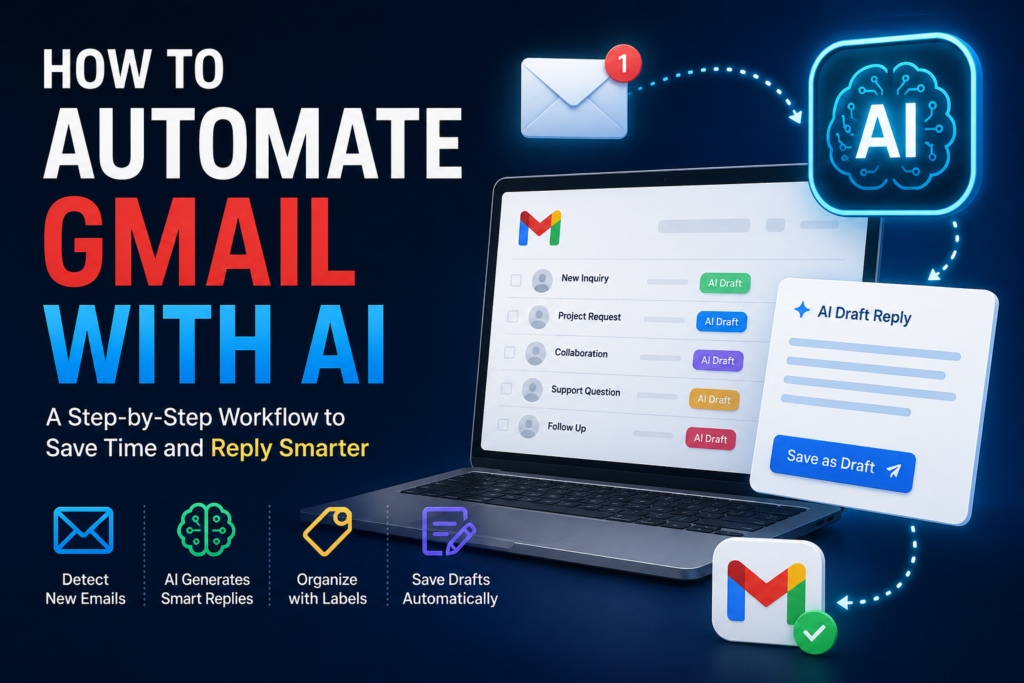
For example, you can combine spreadsheet automation with email workflows and learn how to automate Gmail with AI for draft replies and client communication.
Privacy and Safety Rules
Use these rules before automating spreadsheets with AI:
- Do not send sensitive data to AI by default.
- Do not process private customer information unless necessary.
- Do not allow AI to make financial, legal, medical, or hiring decisions.
- Do not let AI overwrite important spreadsheet data without review.
- Do not process the same row repeatedly.
- Do not expose API keys in spreadsheet cells.
- Do not publish sheets that contain private data.
- Always test with sample data before using real data.
A safe AI spreadsheet workflow should create useful outputs, not risky decisions.
FAQ
What is the easiest way to learn how to automate Google Sheets with AI?
The easiest way to learn how to automate Google Sheets with AI is to start with Gemini inside Google Sheets. Use it to create formulas, analyze data, summarize information, and improve spreadsheet structure. Then move to Zapier, Make, or n8n once you want to connect Sheets with other apps.
Can AI create Google Sheets formulas?
Yes. Gemini in Google Sheets can help create formulas, and other AI tools can also generate formulas from plain English. You should still test any formula before using it on important data.
Can I connect Google Sheets with OpenAI?
Yes. You can connect Google Sheets with OpenAI using automation tools such as Zapier, Make, or n8n, or with a custom Apps Script setup. Zapier offers Google Sheets and ChatGPT/OpenAI integrations, and n8n has a dedicated Google Sheets node for workflow automation.
Do I need coding to automate Google Sheets with AI?
Not always. You can start with Gemini inside Google Sheets or use no-code automation tools such as Zapier and Make. Apps Script becomes useful later, once you need custom automation logic that no-code tools cannot handle.
What are good Google Sheets AI automation examples?
Good examples include lead classification, customer feedback summaries, content idea generation, weekly report summaries, support request tagging, task extraction, and general data cleanup.
Is Google Sheets AI automation safe?
It can be safe for low-risk tasks if you protect private data, review AI outputs, avoid sensitive decisions, and test the workflow before using it on important spreadsheets.
Should I use Gemini, Zapier, Make, n8n, or Apps Script?
Use Gemini for simple spreadsheet help, formulas, summaries, charts, and insights. Use Zapier or Make for beginner-friendly app connections. Use n8n if you want more workflow control. Use Apps Script if you need custom code inside Google Workspace.
Conclusion
Learning how to automate Google Sheets with AI is one of the most practical ways to save time on repetitive spreadsheet work.
Start small. Choose one repeated task.
Use Gemini for simple spreadsheet help. Use AI to generate formulas, clean data, classify rows, summarize text, and create useful outputs. Then connect Google Sheets to automation tools when you are ready to move data between apps.
The safest workflow is always the same:
Google Sheets data → AI output → human review → final action
Once you understand how to automate Google Sheets with AI, you can build useful workflows for leads, reports, content calendars, customer feedback, tasks, and day-to-day business operations.
Do not automate everything at once. Start with one spreadsheet, one task, and one clear outcome.