Discover the best AI tools for productivity and learn how to use them for writing, research, email, tasks, documents, and automation.
Introduction
The problem with AI productivity tools is not that there are too few options. The problem is that there are too many.
Every tool promises to help you work faster, write better, summarize documents, organize tasks, automate emails, or manage your day. But if you install random tools without a clear workflow, you do not become more productive. You simply create another messy system.
That is why this guide is different.
Instead of giving you a generic list, this article explains the best AI tools for productivity based on practical use cases: writing, research, email, documents, tasks, meetings, and automation.
The goal is not to use every tool. The goal is to build a simple AI productivity stack that helps you save time without creating more complexity.
By the end, you will know which tools are useful, what each one does best, and how to combine them into a practical workflow.
What This Productivity Workflow Does
This workflow helps you choose the best AI tools for productivity based on the work you actually do.
Instead of asking, “What is the best AI tool?” ask:
- What task do I repeat every week?
- What slows me down?
- What do I write, read, organize, or summarize often?
- What can AI draft, extract, or structure for me?
- What should still require human review?
A strong AI productivity system usually covers five areas:
- Writing and editing
- Research and document understanding
- Email and communication
- Task and project organization
- Automation between apps
If a tool does not improve one of those areas, you probably do not need it yet.
How to Choose the Best AI Tools for Productivity
Before choosing tools, use this simple filter.
A productivity AI tool should do at least one of these:
- reduce repetitive work
- improve decision-making
- summarize information faster
- help you write clearer messages
- organize tasks or projects
- connect apps together
- create a repeatable workflow
Avoid tools that only feel interesting but do not fit your daily work.
The best AI tools for productivity are not always the most advanced. They are the tools you can actually use every week without friction.
Tools You Need
You do not need all nine tools. Start with two or three.
A simple beginner stack could be:
- ChatGPT for general work and document analysis
- Notion AI or Todoist for organization
- Grammarly for writing improvement
- Zapier or Make later for automation
A more advanced stack could be:
- Claude for long-form thinking and drafts
- NotebookLM for research
- Microsoft Copilot for Outlook, Teams, and Microsoft 365 work
- Zapier for AI workflows across apps
Now let’s look at the best AI tools for productivity by use case.
1. ChatGPT — Best General AI Productivity Assistant
ChatGPT is one of the most flexible AI tools for productivity because it can help with many types of work:
- drafting emails
- summarizing documents
- brainstorming ideas
- analyzing files
- creating outlines
- rewriting text
- explaining complex topics
- building simple workflows
OpenAI’s file upload documentation describes use cases such as analyzing spreadsheets, comparing documents, and extracting information from uploaded files.
Best use cases
Use ChatGPT for:
- turning messy notes into clear summaries
- drafting first versions of emails or articles
- summarizing PDFs or documents
- creating checklists
- analyzing small datasets
- building prompts for repeated tasks
Simple workflow
Use ChatGPT like this:
- Paste or upload the information.
- Give it a clear role.
- Ask for a structured output.
- Review the result.
- Save the final version in your workspace.
Example prompt:
You are my productivity assistant.

Turn these messy notes into:
1. A short summary
2. A task list
3. Follow-up questions
4. A final recommendation

Keep the output clear and practical.
Best for
- freelancers
- creators
- small business owners
- marketers
- students
- general knowledge workers
ChatGPT is usually the first tool to test when building an AI productivity workflow.
2. Claude — Best for Long Documents and Clear Writing
Claude is strong for long-form thinking, structured writing, document review, and careful drafting.
It is useful when you need to work through:
- long documents
- detailed briefs
- strategy notes
- technical explanations
- article drafts
- business planning
- complex writing tasks
Anthropic’s help documentation explains that Claude Artifacts can place substantial standalone content in a separate window, which makes it easier to work on content, code, tools, and visualizations alongside the chat.
Best use cases
Use Claude for:
- editing long articles
- comparing ideas
- improving clarity
- turning rough drafts into polished content
- analyzing long client briefs
- creating structured documents
Simple workflow
- Upload or paste your draft.
- Ask Claude to improve clarity and structure.
- Request a better outline.
- Ask for missing sections.
- Finalize manually.
Example prompt:
Review this draft and improve it for clarity, structure, and usefulness.

Do not make it sound promotional.
Keep the tone practical and professional.
List the most important improvements before rewriting.
Best for
- writers
- consultants
- content creators
- technical explainers
- people working with long documents
Claude is one of the best AI tools for productivity when your work involves thinking, writing, and editing.
Developers and technical builders may also find this Claude vs ChatGPT for coding comparison useful when choosing an AI assistant for debugging, planning, and writing code
3. NotebookLM — Best for Research and Source-Based Notes
NotebookLM is useful when your productivity problem is not writing, but understanding information from documents.
It works well for:
- research notes
- PDFs
- study material
- multiple sources
- client documents
- course notes
- reports
Google’s NotebookLM help documentation explains that users can add sources, including PDFs, into notebooks and work with those sources.
Best use cases
Use NotebookLM for:
- summarizing research material
- asking questions about uploaded sources
- comparing multiple documents
- creating study notes
- extracting important ideas from reports
Simple workflow
- Create a notebook for one project.
- Upload PDFs, notes, or documents.
- Ask for a summary of the sources.
- Ask specific questions.
- Save the most useful answers into your notes.
Example prompt:
Based only on the uploaded sources, summarize the main ideas, key arguments, important details, and questions I should investigate next.Best for
- students
- researchers
- content creators
- consultants
- anyone working with multiple documents
NotebookLM is especially useful when you want AI answers grounded in your own uploaded material.
4. Microsoft Copilot — Best for Microsoft 365 Users
Microsoft Copilot is a strong productivity option if your work already happens inside Microsoft 365.
It can help with:
- Outlook emails
- Teams meetings
- Word documents
- PowerPoint files
- Excel work
- internal work summaries
Microsoft’s Outlook support documentation says Copilot can summarize email threads and, in supported situations, summarize files attached to emails. Microsoft also says Copilot in Teams can summarize key discussion points and suggest action items during or after meetings.
Best use cases
Use Microsoft Copilot for:
- summarizing long email threads
- catching up on missed meetings
- extracting action items
- drafting business documents
- reviewing Microsoft 365 files
- preparing meeting follow-ups
Simple workflow
- Use Copilot to summarize the meeting or email thread.
- Ask for action items.
- Ask who is responsible for each task.
- Move the tasks into your project system.
- Review before sharing with others.
Example prompt:
Summarize this meeting and extract:
1. Key decisions
2. Action items
3. Responsible people
4. Deadlines
5. Open questions
Best for
- teams using Microsoft 365
- business users
- managers
- consultants
- Outlook-heavy workflows
Microsoft Copilot is one of the best AI tools for productivity if your work is already inside Outlook, Teams, Word, Excel, and PowerPoint.
5. Notion AI — Best for Notes, Knowledge, and Project Organization
Notion AI is useful if you already use Notion to organize your work.
It can help with:
- notes
- project pages
- meeting summaries
- task planning
- knowledge management
- internal documentation
Notion explains that its AI features can help answer questions, prioritize tasks, write reports, and work across team knowledge. Notion’s own guide also describes using Notion AI to summarize key points and improve writing tone inside documents.
Best use cases
Use Notion AI for:
- summarizing meeting notes
- cleaning up messy project pages
- turning notes into tasks
- creating content calendars
- drafting internal documentation
- organizing research
Simple workflow
- Put your notes in Notion.
- Ask AI to summarize them.
- Turn the summary into tasks.
- Add deadlines and owners.
- Save the page as a reusable template.
Example prompt:
Turn these project notes into:
1. A short summary
2. A task list
3. Deadlines mentioned
4. Questions to clarify
5. Next steps
Best for
- creators
- freelancers
- small teams
- students
- people who use Notion as a workspace
Notion AI works best when your notes, tasks, and documents already live in Notion.
6. Grammarly — Best for Clearer Writing and Editing
Grammarly is useful when your biggest productivity problem is communication quality.
It can help improve:
- emails
- proposals
- social posts
- documents
- reports
- client messages
- website copy
Grammarly describes its AI writing tools as helping users strengthen structure, improve phrasing, adjust tone, and polish writing across different contexts.
Best use cases
Use Grammarly for:
- editing client emails
- improving proposals
- checking tone
- rewriting unclear paragraphs
- polishing business writing
- reducing small writing mistakes
Simple workflow
- Draft the message yourself or with AI.
- Use Grammarly to check clarity and tone.
- Accept only the suggestions that improve the message.
- Read the final version manually before sending.
Example prompt inside your writing workflow:
Make this message clearer, shorter, and more professional without changing the meaning.Best for
- freelancers
- marketers
- support teams
- writers
- business owners
Grammarly is not the most advanced AI system, but it is practical because it improves everyday writing.
7. Zapier — Best for AI Automation Between Apps
Zapier is useful when you want AI to do more than generate text.
It helps connect apps together and automate workflows.
Examples:
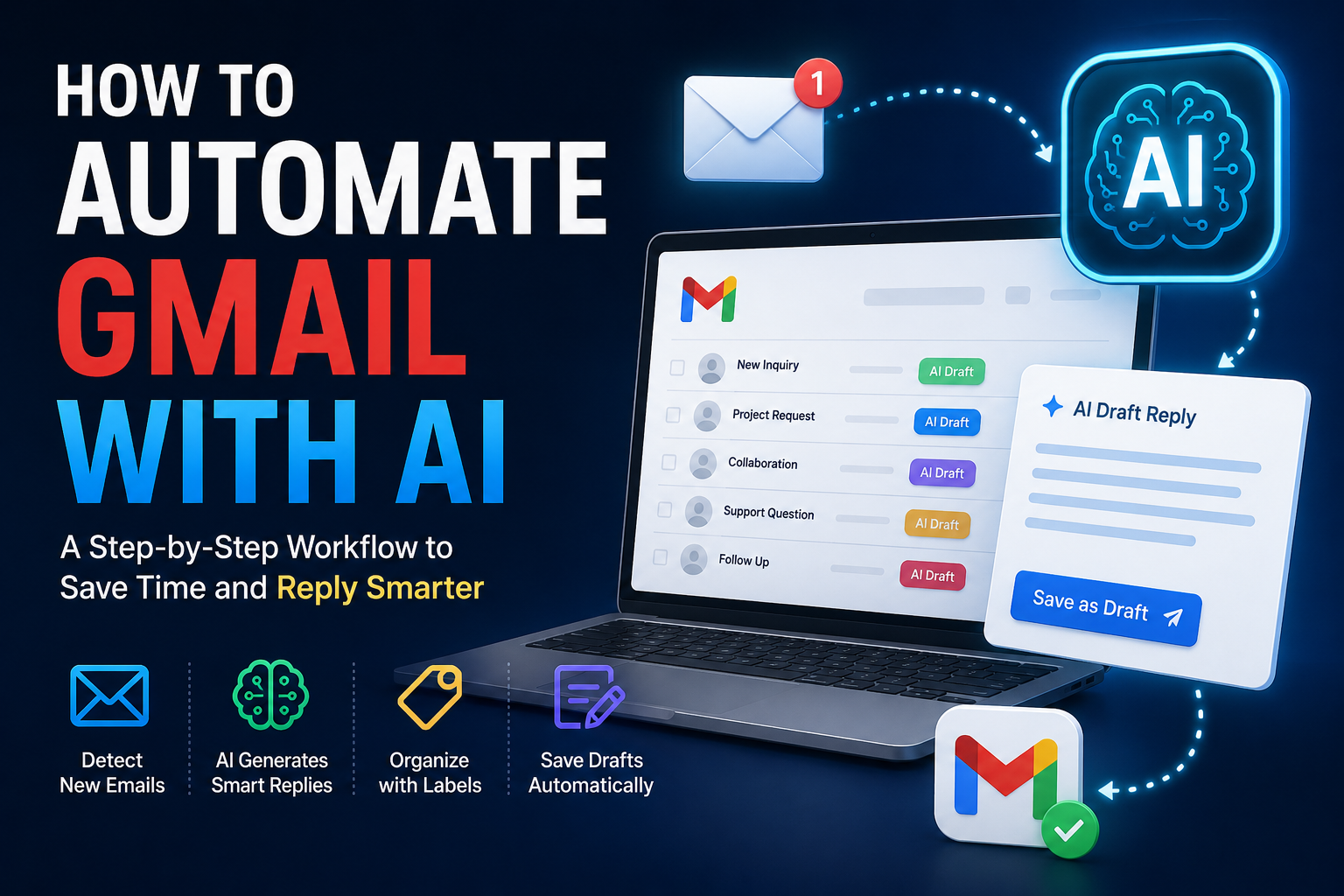
- Gmail email arrives → AI drafts reply → Gmail saves draft
- Form response arrives → AI summarizes request → task is created
- New lead arrives → AI classifies it → CRM is updated
- New document added → AI creates summary → Slack notification is sent
Zapier says it connects AI workflows, agents, and apps across more than 9,000 apps, and its AI page says it connects hundreds of AI tools to everyday apps.
Email is one of the easiest places to start, and you can also learn how to automate Gmail with AI to create draft replies, organize messages, and reduce repetitive inbox work.
Best use cases
Use Zapier for:
- email automation
- lead processing
- form response summaries
- task creation
- customer support drafts
- content workflow automation
Simple workflow
- Choose a trigger.
- Send the data to an AI step.
- Ask AI to summarize, classify, or draft.
- Send the result to another app.
- Review important outputs manually.
Example workflow:
New Gmail email → ChatGPT draft reply → Gmail draft → Label as “AI Draft Ready”Best for
- freelancers
- small businesses
- marketers
- agencies
- creators with repeated workflows
Zapier is one of the best AI tools for productivity when your goal is automation across apps, not just writing.
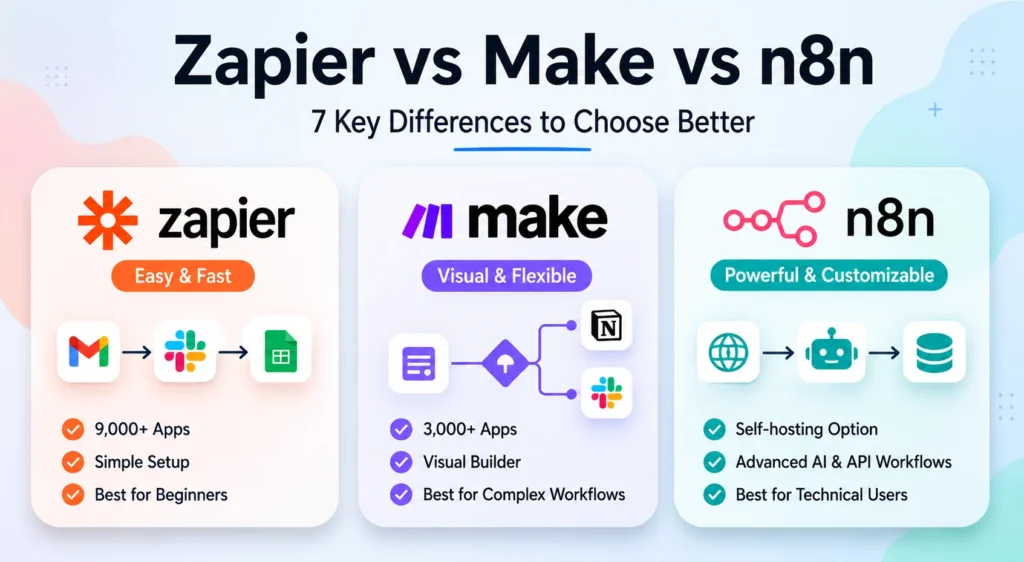
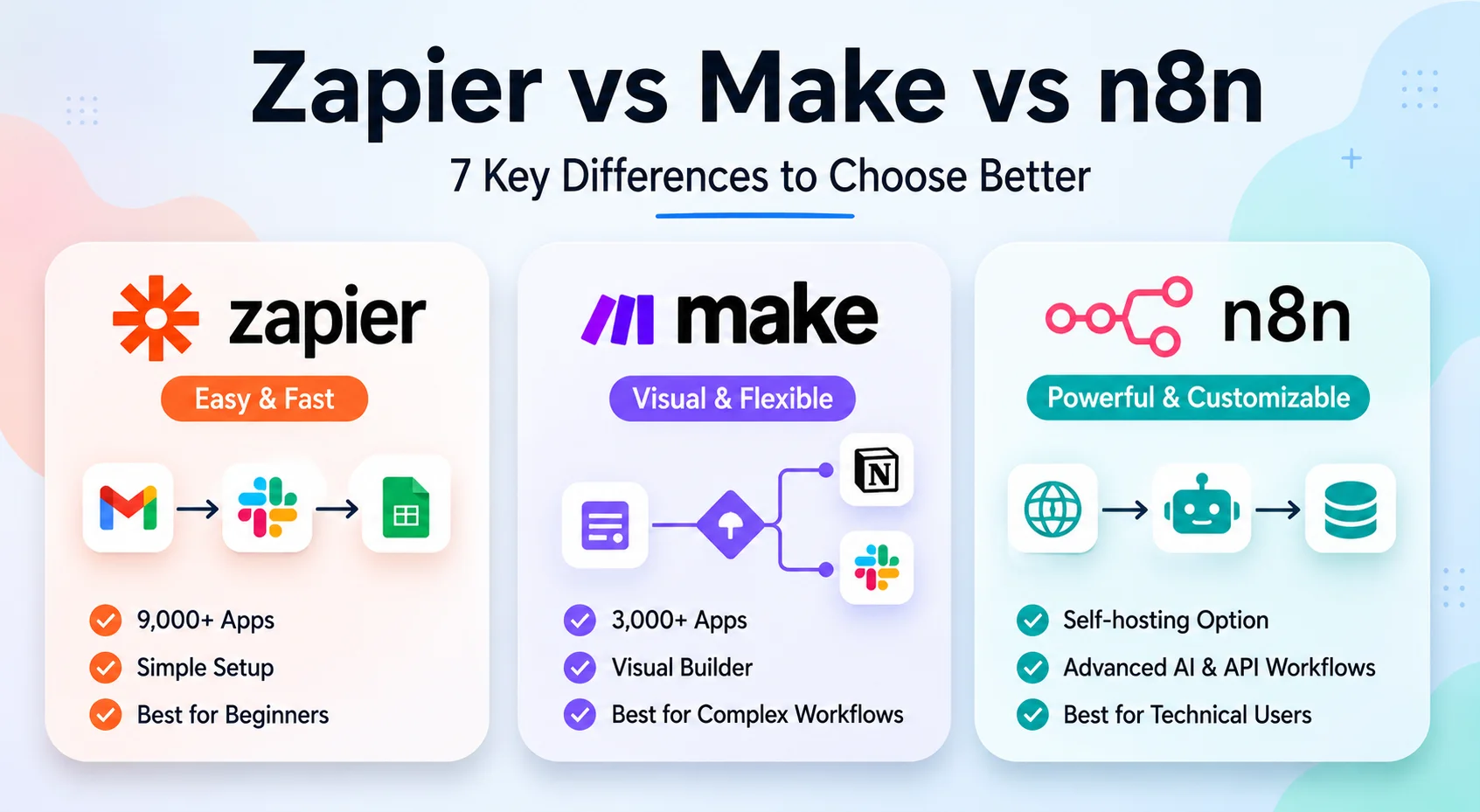
If you want to connect different apps together, this Zapier vs Make vs n8n comparison can help you choose the right automation tool for your workflow.
8. Todoist Assist — Best for Task Organization
Todoist is already a strong task manager, and Todoist Assist adds AI support for turning work into tasks.
Todoist’s help documentation describes Todoist Assist as an AI-powered suite that can help automate task creation from emails and build complex filters using natural language. Todoist also describes Task Assist as helping generate task and sub-task suggestions and break down complex work.
Best use cases
Use Todoist Assist for:
- breaking big tasks into smaller steps
- organizing work from emails
- planning projects
- creating subtasks
- building task filters
- reducing task management friction
Simple workflow
- Capture a task quickly.
- Ask AI to break it into subtasks.
- Add due dates.
- Organize by project.
- Review your daily list.
Example:
Break this task into smaller steps:
“Launch a new blog article on Systemaly.”
Possible output:
- finalize article
- upload featured image
- add internal links
- optimize Rank Math
- publish post
- request indexing
- share on Facebook
Best for
- freelancers
- students
- creators
- solo business owners
- people who forget to break down large tasks
Todoist Assist is useful if your productivity problem is task organization, not content creation.
9. Perplexity — Best for Quick Research With Sources
Perplexity is useful when you want fast answers with source references.
It is not a replacement for deep research, but it can help you quickly understand a topic, compare tools, or find starting points.
Perplexity describes itself as an AI-powered answer engine that provides real-time answers to questions.
Best use cases
Use Perplexity for:
- quick research
- comparing tools
- finding sources
- understanding concepts
- preparing article outlines
- checking current information
Simple workflow
- Ask a specific research question.
- Review the sources.
- Open the original sources.
- Extract useful facts.
- Verify important claims before publishing.
Example prompt:
Compare three AI tools for summarizing PDFs. Focus on use case, strengths, limitations, and official source links.Best for
- writers
- researchers
- creators
- marketers
- people who need quick source-based answers
Perplexity can be part of your research workflow, but do not copy answers blindly. Always check the original sources.
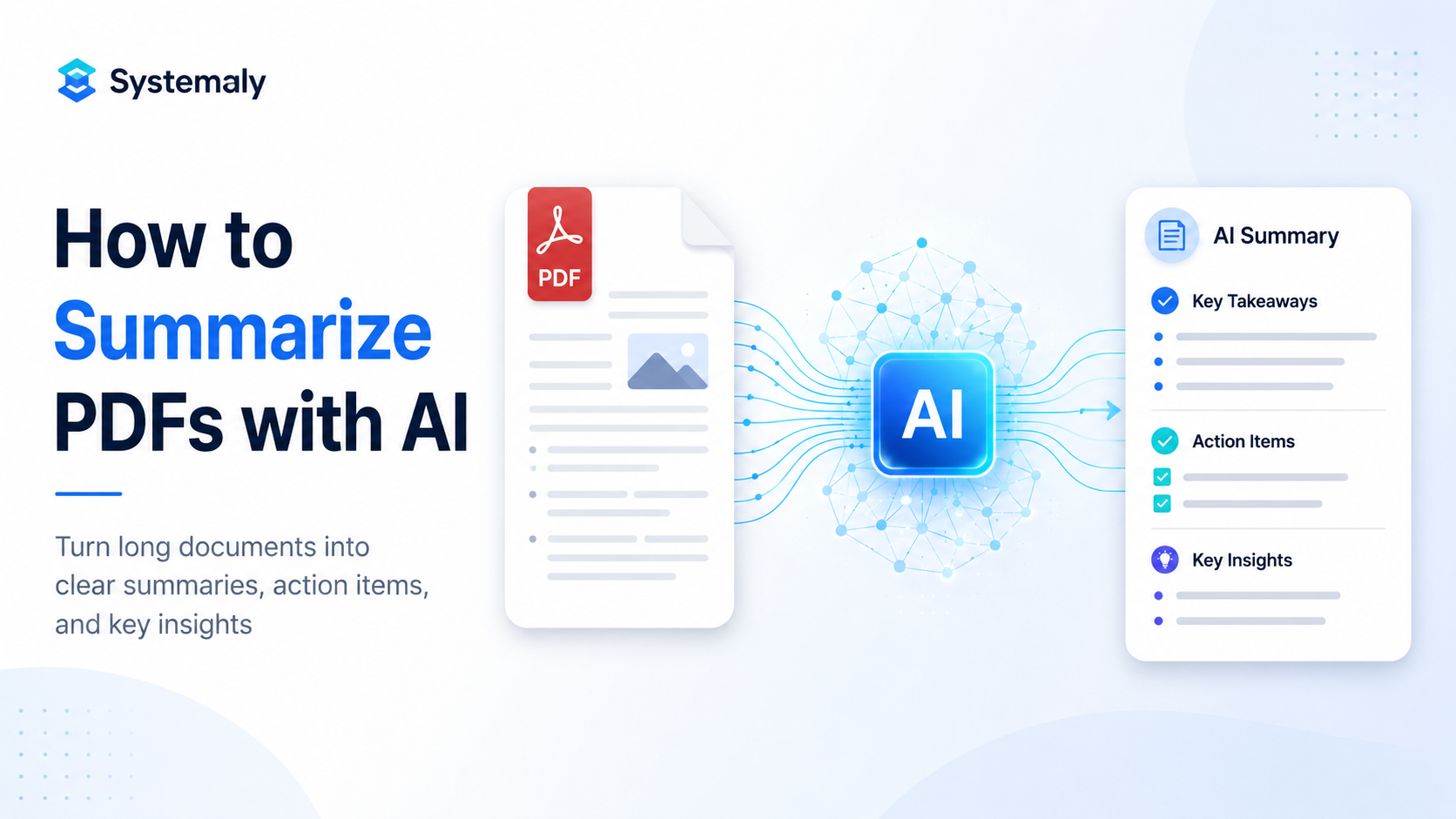
For document-heavy work, learning how to summarize PDFs with AI can help you extract key points, action items, and useful insights from long files faster.
Practical Example: A Freelancer Productivity Stack
Imagine you are a freelance consultant.
You manage client emails, proposals, research, meetings, and weekly reports.
Instead of using ten random AI tools, you build a simple stack:
- ChatGPT for drafting and summarizing
- Claude for long documents and detailed writing
- Notion AI for project notes
- Grammarly for editing client communication
- Zapier for automating repetitive steps
Your workflow could look like this:
- A client sends a long PDF brief.
- You summarize it with ChatGPT or Claude.
- You save action items in Notion.
- You draft a reply with ChatGPT.
- Grammarly improves tone and clarity.
- Zapier creates a task or saves the summary automatically.
This is how the best AI tools for productivity should work together.
Not as isolated apps, but as a connected workflow.
Common Mistakes to Avoid
1. Installing Too Many AI Tools
More tools do not automatically mean more productivity.
Start with one tool for writing, one for organization, and one for automation later.
2. Using AI Without a Workflow
Do not ask random questions every time.
Create repeatable prompts for:
- emails
- summaries
- meeting notes
- client briefs
- tasks
- content outlines
3. Trusting AI Without Review
AI can save time, but it can still make mistakes.
Always review:
- facts
- names
- dates
- prices
- legal terms
- client messages
- published content
4. Automating Too Early
Do not automate a workflow you do not understand manually.
First, do the process by hand. Then automate the stable parts.
5. Ignoring Privacy
Be careful with sensitive documents, private client data, financial information, legal content, and confidential business material.
Before uploading sensitive information, check the tool’s privacy policy and business settings.
Best Practices for Using AI Productivity Tools
Build a Small AI Stack
A good beginner stack:
- ChatGPT for general AI work
- Grammarly for writing polish
- Todoist or Notion for organization
A stronger workflow stack:
- Claude for long documents
- NotebookLM for research
- Zapier for automation
Do not use everything immediately.
Save Your Best Prompts
Create a simple prompt library for:
- email replies
- PDF summaries
- meeting notes
- project plans
- article outlines
- client communication
This makes AI faster and more consistent.
Use AI for Drafts, Not Final Decisions
AI should help you prepare work faster.
You still make the final decision.
Use AI to:
- draft
- summarize
- organize
- extract
- rewrite
- classify
Do not let AI blindly approve, publish, or send important work.
Connect Tools Only After the Workflow Works
Automation is powerful, but it should come after clarity.
First:
manual workflow
Then:
repeatable workflow
Then:
automation
This prevents broken systems.
FAQ
What are the best AI tools for productivity?
The best AI tools for productivity depend on your workflow. ChatGPT is strong for general tasks, Claude for long writing and documents, NotebookLM for research, Microsoft Copilot for Microsoft 365 users, Notion AI for notes, Grammarly for writing, Zapier for automation, Todoist Assist for tasks, and Perplexity for research.
What is the best AI tool for daily productivity?
For most people, ChatGPT is the best starting point because it can help with writing, summaries, planning, brainstorming, and document analysis. If your work is mostly inside Microsoft 365, Microsoft Copilot may be more useful.
Are AI productivity tools worth it?
Yes, if you use them for repeated work. They are most useful for summarizing information, drafting text, organizing tasks, improving writing, and automating workflows. They are less useful if you use them randomly without a process.
Which AI tool is best for freelancers?
Freelancers can start with ChatGPT, Claude, Grammarly, Notion AI, and Zapier. This gives them support for writing, client communication, research, organization, and automation.
Which AI tool is best for small businesses?
Small businesses should choose tools based on existing workflows. Microsoft 365 users may prefer Copilot. Teams using Notion may prefer Notion AI. Businesses with many repeated processes may benefit from Zapier or Make.
Can AI tools replace productivity apps?
No. AI tools usually work best inside or alongside productivity apps. They help summarize, draft, organize, and automate, but you still need a place to manage tasks, documents, projects, and decisions.
How many AI productivity tools should I use?
Start with two or three. A simple stack is better than a messy one. Add new tools only when they solve a clear problem.
Conclusion
The best AI tools for productivity are not the tools with the most features. They are the tools that fit your actual work.
Start with the tasks that waste the most time:
- writing emails
- reading long documents
- summarizing meetings
- organizing tasks
- researching topics
- moving information between apps
Then choose the tool that solves that specific problem.
A simple starting stack could be:
ChatGPT → Grammarly → Notion or Todoist
A more advanced stack could be:
Claude → NotebookLM → Zapier → Microsoft Copilot
Do not try to use every tool at once. Build one useful workflow, improve it, then add automation later.
Once you understand the best AI tools for productivity, the real advantage is not the tools themselves. It is knowing how to combine them into a system that saves time every week.