7 Easy Steps for Faster Reading
Learn how to summarize PDFs with AI using a practical workflow to extract key points, action items, risks, and summaries from long documents.
Introduction
If you want to learn how to summarize PDFs with AI without missing important details, you need more than a simple “summarize this” prompt.
If you regularly deal with long PDFs, you already know the problem.
A client sends a 40-page brief. A course includes a long study guide. A business report hides the key insights across dozens of pages. A research paper has useful information, but you do not have time to read every section slowly.
AI can help you get to the important parts faster.
But “just upload it and ask for a summary” is not always a reliable workflow. It can work for simple documents, but it becomes weaker when the PDF is long, scanned, full of tables, or needs to be turned into action items.
In this guide, you will learn how to summarize PDFs with AI using a practical workflow you can repeat for reports, client briefs, research papers, proposals, training documents, and business files.
The goal is not to let AI replace careful reading. The goal is to use AI as a reading assistant so you can understand documents faster, find what matters, and decide what deserves deeper review.
What This PDF AI Workflow Does
This workflow helps you turn a long PDF into a clear, useful summary.
Instead of asking for a vague overview, you will use a structured process:
- Choose the right AI tool for the document.
- Prepare the PDF before uploading.
- Ask for a short overview.
- Create a structured summary.
- Extract action items and risks.
- Ask follow-up questions.
- Verify important details before using the output.
This is useful for:
- freelancers reviewing client briefs
- creators summarizing research
- small businesses reading proposals
- marketers analyzing reports
- consultants reviewing industry documents
- students studying long course material
- solopreneurs processing contracts, guides, or reports
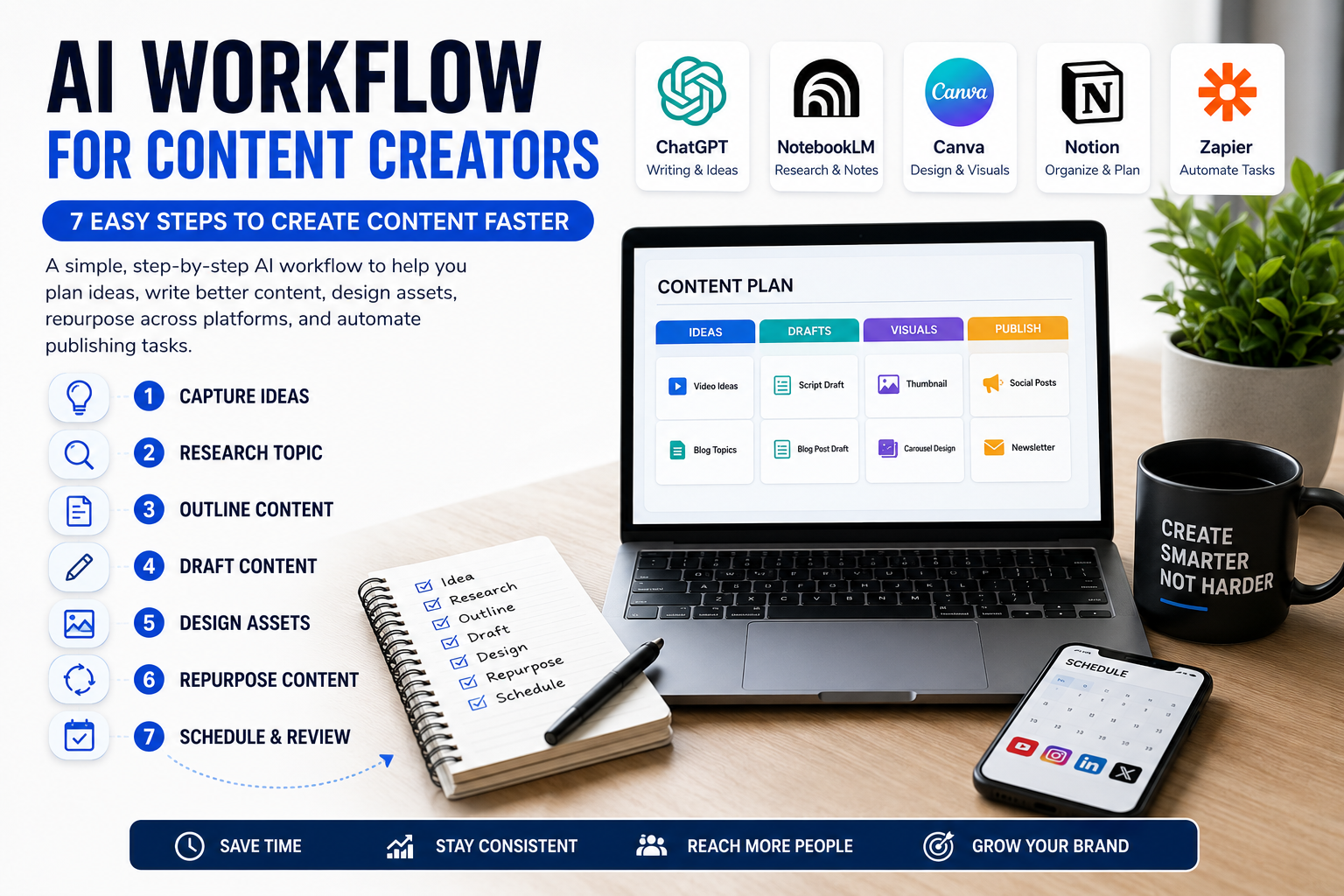
If you want to learn how to summarize PDFs with AI properly, the key is to treat summarization as a workflow, not a one-line prompt. This process can also become part of an AI workflow for content creators to turn long documents into ideas, outlines, and content drafts.
Tools You Can Use
There are several ways to summarize PDFs with AI. The right tool depends on your document type, privacy needs, and how often you repeat the task.
ChatGPT
ChatGPT can work with uploaded PDFs and help you ask questions, extract key points, and summarize document content. OpenAI’s file upload documentation describes use cases such as pulling relevant information from PDFs and searching uploaded documents for specific topics.
Use ChatGPT when you want:
- quick summaries
- plain-language explanations
- follow-up questions
- flexible prompting
- one-off document review
Claude
Claude can process PDFs and answer questions about text, images, charts, and tables in provided documents, according to Anthropic’s PDF support documentation.
Use Claude when you want:
- detailed document analysis
- strong instruction-following
- long-form summaries
- extraction from complex documents
- deeper follow-up questions
NotebookLM
NotebookLM is useful for source-based document work. Google’s NotebookLM help documentation explains that users can add sources such as PDFs and use them inside a notebook.
Use NotebookLM when you want:
- source-grounded summaries
- document-based Q&A
- research organization
- multiple sources in one workspace
- study guides or research notes
Adobe Acrobat AI Assistant
Adobe Acrobat AI Assistant is built specifically for working with PDFs and documents. Adobe describes it as a tool that can summarize documents and let users ask questions about PDFs. Adobe also says customer content is not used to train the large language models that deliver Acrobat’s generative AI capabilities.
Use Adobe Acrobat AI Assistant when you want:
- PDF-focused summaries
- document Q&A inside Acrobat
- a familiar PDF environment
- summaries of business or study documents
Automation Tools
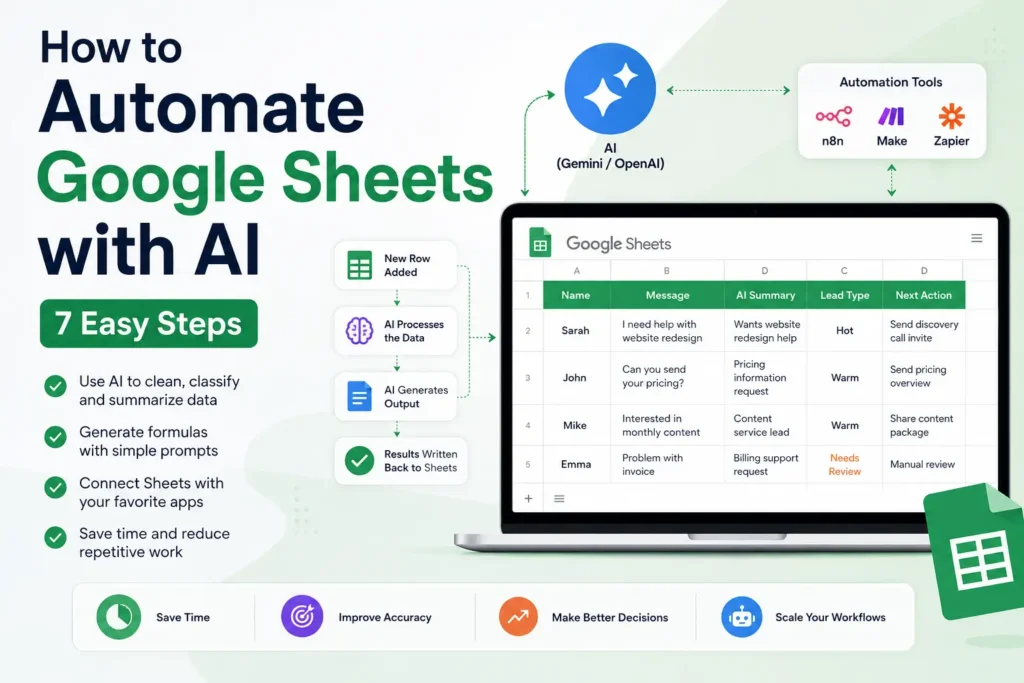
If you summarize PDFs often, you can later connect tools like Make, Zapier, or n8n to build an automated workflow.
For example:
New PDF in folder → extract text → AI summary → save summary to Notion or Google Docs
This is useful if you regularly receive:
- weekly reports
- client documents
- PDF invoices
- research files
- form submissions
- email attachments
Start manually first. Automate only when you understand your ideal summary format.
Step-by-Step Guide: How to Summarize PDFs with AI
Step 1: Choose the Right Method
Before uploading your PDF, decide what you need from it.
Different situations need different workflows.
For a one-time summary, use ChatGPT, Claude, NotebookLM, or Acrobat AI Assistant.
For research across multiple documents, use NotebookLM or another source-based workspace.
For recurring PDF summaries, use an automation tool later.
For sensitive documents, slow down and check privacy rules before uploading anything.
A simple decision framework:
- Quick one-off summary: ChatGPT or Claude
- Long document review: Claude or NotebookLM
- Research across multiple PDFs: NotebookLM
- PDF-focused work: Adobe Acrobat AI Assistant
- Recurring PDF workflow: Make, Zapier, or n8n
The easiest way to understand how to summarize PDFs with AI is to start with the document’s purpose.
Ask yourself:
- Do I need a quick overview?
- Do I need action items?
- Do I need risks and missing details?
- Do I need to verify claims?
- Do I need to repeat this every week?
Your answer determines the workflow.
Step 2: Prepare the PDF
AI tools work best with clean, text-based PDFs.
Before uploading, check the document.
Good PDF types:
- reports
- proposals
- ebooks
- client briefs
- research papers
- meeting notes
- business guides
- training material
Harder PDF types:
- scanned documents
- image-only PDFs
- handwritten notes
- low-quality scans
- complex tables
- chart-heavy reports
- locked or password-protected files
If your PDF is scanned, the AI may not read it correctly unless the tool supports OCR or visual document processing.
For long PDFs, consider splitting the document into sections:
- introduction
- chapter 1
- chapter 2
- appendix
- tables
- references
This can produce better summaries than forcing one giant document into one request.
Also remove unnecessary pages if they are not relevant, such as:
- blank pages
- cover pages
- repeated disclaimers
- unrelated appendices
Cleaner input usually creates better output.
Step 3: Ask for a Short Overview First
Do not start with a deep summary immediately.
Begin with a simple overview so you understand what the document is about.
Use this prompt:
Summarize this PDF in 5 bullet points. Focus only on the main ideas and ignore minor details.This helps you quickly answer:
- What is this PDF about?
- What are the main sections?
- Why does it matter?
- Is it worth reading deeply?
- What should I ask next?
A short overview prevents you from wasting time on the wrong document or asking the wrong follow-up questions.
Step 4: Create a Structured Summary
After the first overview, ask for a structured summary.
Use this prompt:
Create a structured summary of this PDF using this format:

1. Main topic
2. Key points
3. Important details
4. Action items
5. Risks or warnings
6. Missing information
7. Questions I should ask
8. Final takeaway
This is much better than:
Summarize this PDF.A vague prompt creates a vague summary.
A structured prompt tells the AI exactly what to extract.
This is one of the most important rules when learning how to summarize PDFs with AI: always define the output format.
Step 5: Extract Specific Information
Most PDFs contain more than one type of useful information.
A general summary is helpful, but specific extraction is usually more valuable.
Use targeted prompts based on the document type.
For a client brief:
Extract the project goals, deliverables, deadlines, client responsibilities, missing information, and questions I should ask before sending a quote.For a research paper:
Summarize the research paper. Include the research question, methodology, key findings, limitations, and practical implications.For a business report:
Extract the main trends, important numbers, risks, recommendations, and action items from this report.For a contract or agreement:
Extract the payment terms, responsibilities, deadlines, cancellation terms, risks, and unclear clauses. Do not give legal advice.For course material:
Create study notes from this PDF. Include key concepts, definitions, examples, likely exam questions, and a short revision checklist.Specific prompts create useful summaries because they match your real goal.
Step 6: Ask Follow-Up Questions
A PDF summary should not be the end of the workflow.
Use the first summary to ask better questions.
Good follow-up prompts:
What are the most important details I should verify in the original PDF?What information is missing or unclear in this document?What are the risks, assumptions, or weak points in this PDF?What questions should I ask before making a decision based on this document?Turn this summary into a checklist of next actions.This is where AI becomes more useful than a simple summarizer.
It helps you think through the document, not just shorten it.
Step 7: Verify Important Details
AI summaries are useful, but they are not perfect.
They can miss details, simplify context, or misunderstand tables, numbers, and legal language.
Always verify important information in the original PDF before using it.
Check details such as:
- prices
- dates
- deadlines
- legal terms
- payment terms
- client requirements
- responsibilities
- technical specifications
- financial numbers
- medical or legal information
Use this prompt:
List the most important claims in your summary and tell me where I should verify them in the original PDF.If your tool supports citations, page references, or source links, use them.
The correct mindset is:
AI helps you read faster, but you still verify anything important.
Step 8: Save the Final Summary
Do not let the summary disappear inside a chat.
Save it somewhere useful.
Good places:
- Google Docs
- Notion
- Microsoft Word
- project folder
- client workspace
- CRM notes
- research database
Use this format:
PDF Summary Template

Document name:
Date reviewed:
Purpose:

Short summary:
Key points:
Action items:
Risks or warnings:
Missing information:
Questions to ask:
Important details to verify:
Original file location:
This turns AI summarization into a repeatable productivity system.
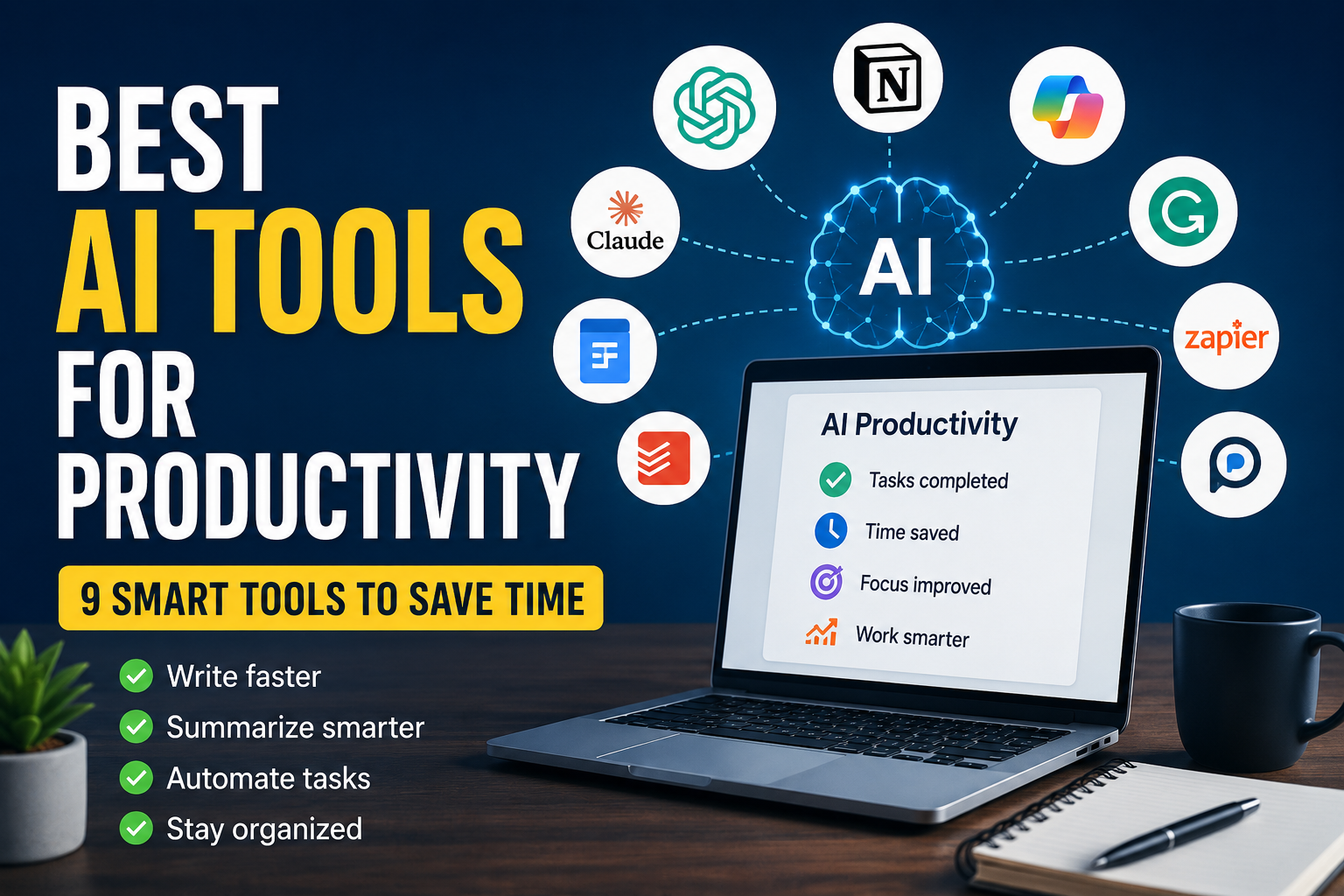
If you want to improve more than document reading, you can also explore the best AI tools for productivity for writing, research, email, tasks, and automation
Practical Example: Freelancer Reviewing a Client Brief
Imagine you are a freelance web designer.
A potential client sends you a 25-page PDF brief for a website redesign. The document includes company background, design preferences, website goals, required pages, content responsibilities, and timeline notes.
Without AI, you might spend an hour reading the entire document and still miss important questions.
With an AI PDF workflow, you can process it more clearly.
Your workflow:
- Upload the PDF to your chosen AI tool.
- Ask for a 5-bullet overview.
- Ask for a structured summary.
- Extract deliverables and deadlines.
- Ask for missing information.
- Verify important details in the original PDF.
- Save the summary in your project folder.
Use this prompt:
You are helping me review a website project brief.

Summarize this PDF and extract:
- project goals
- required website pages
- design preferences
- content responsibilities
- deadlines
- missing information
- risks
- questions I should ask before sending a quote
The AI might show that:
- the client needs a 7-page website
- they want a modern design
- they mention a launch date
- they have not clarified who will write the website copy
- they want integrations but did not specify which tools
- they expect revisions but did not define how many
Now you can reply with better questions instead of guessing.
That is the real value of learning how to summarize PDFs with AI. It helps you turn long documents into decisions, tasks, and next steps.
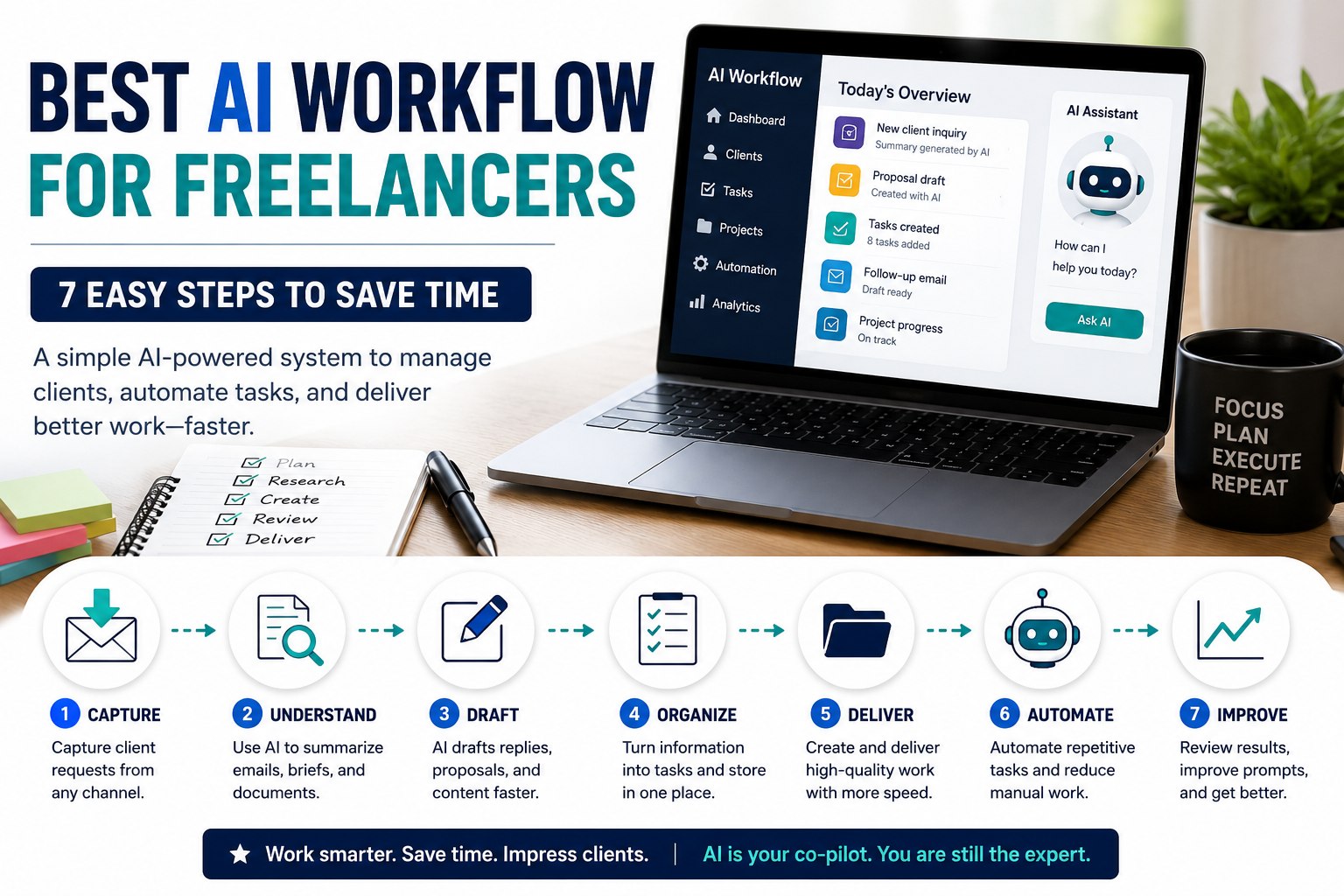
For freelancers, PDF summarization is even more useful when it fits into a complete AI workflow for freelancers for client briefs, research, proposals, and follow-ups.
Optional Workflow: Automate Recurring PDF Summaries
Manual upload is fine when you summarize PDFs occasionally.
But if you receive the same type of PDF every week, automation can save more time.
Example workflow:
- A PDF report arrives by email.
- An automation tool detects the attachment.
- The PDF text is extracted.
- The text is sent to an AI model with your saved prompt.
- The summary is saved to Notion, Google Docs, Slack, or email.
This is useful for:
- weekly client reports
- invoices
- analytics summaries
- research digests
- support documents
- lead forms with PDF attachments
Do not start here if you are a beginner.
First, learn what type of summary you actually need. Then automate that exact workflow later.
A weak manual process becomes a weak automation.
A strong manual process becomes a useful automation.
Common Mistakes to Avoid
1. Asking for a Generic Summary
The weakest prompt is:
Summarize this.A better prompt is:
Summarize this PDF for a freelancer who needs to understand the key tasks, deadlines, risks, missing details, and follow-up questions.The AI needs context.
Tell it who you are, what you need, and how to format the answer.
2. Uploading Scanned PDFs Without Checking Them
Scanned PDFs may look readable to you but not to the AI.
If the document is image-based, use a tool that supports OCR or visual document understanding.
After uploading, ask:
Can you read the text in this PDF clearly? Tell me if any pages appear unreadable.This helps you catch problems early.
3. Trusting the Summary Without Verification
AI can summarize well, but it can still miss important details.
Never rely only on the summary for:
- contracts
- financial documents
- legal documents
- medical documents
- client requirements
- technical specifications
Use the summary to guide your reading, then verify the key parts yourself.
4. Ignoring Tables and Charts
PDFs often contain important information in tables, charts, and diagrams.
Ask for them separately:
Extract and summarize the tables in this PDF separately.Explain the main charts or visual data in this PDF and list the key takeaways.If the tool cannot understand visual content well, check those pages manually.
5. Using the Same Prompt for Every PDF
A research paper, business report, client brief, and contract need different summary styles.
Create a small prompt library for the documents you handle most often.
Examples:
- client brief summary prompt
- research paper summary prompt
- contract review prompt
- report analysis prompt
- course notes prompt
This makes the workflow faster and more reliable.
6. Uploading Sensitive Documents Without Checking Privacy
Do not upload sensitive documents casually.
Be careful with:
- contracts
- client files
- medical records
- financial documents
- private company reports
- personal identification data
- confidential business strategy
Always check the privacy and data handling rules of the tool before uploading sensitive content.
Best Practices for AI PDF Summaries
Use Summary Layers
Ask for summaries in levels:
- one-sentence summary
- 5-bullet overview
- structured summary
- action-item summary
- risk summary
- final decision checklist
This helps you understand the PDF from general to specific.
Add Your Role and Goal
Tell the AI why you are reading the document.
Example:
I am a freelance marketer reviewing this client brief before preparing a proposal. Summarize the PDF with a focus on deliverables, deadlines, risks, and missing information.This creates a more relevant summary.
Ask for Action Items Separately
Do not assume the AI will automatically find tasks.
Ask directly:
Extract all action items from this PDF. For each one, include the task, possible owner, deadline if mentioned, and missing information.Ask for Risks and Missing Details
One of the most useful prompts is:
What risks, gaps, assumptions, or missing details should I notice in this PDF?This helps you avoid making decisions from incomplete information.
Save Your Best Prompts
Once a prompt works well, save it.
Use a note file, Notion page, Google Doc, or text document.
Over time, you can build your own PDF prompt library for:
- reports
- proposals
- contracts
- research papers
- course notes
- meeting documents
Keep the Original PDF Linked
Your summary should always point back to the original file.
This helps you verify details later and avoid losing context.
For better summaries, it also helps to use structured prompts, and these best ChatGPT prompts for business can help you ask clearer questions and get more useful outputs.
Privacy and Safety Rules
AI PDF summarization is useful, but it should be used carefully.
Follow these rules:
- Do not upload sensitive documents unless you understand the tool’s privacy policy.
- Do not rely on AI summaries for legal, medical, or financial decisions.
- Do not assume AI captured every important detail.
- Do not upload client documents if you do not have permission.
- Do not use one generic prompt for every document type.
- Do not skip verification for important details.
- Do not summarize confidential documents in consumer tools without checking data policies.
For normal productivity documents, AI summaries can save a lot of time.
For high-stakes documents, AI summaries should be treated as a starting point, not a final answer.
FAQ
Can AI summarize a PDF?
Yes. Many AI tools can summarize PDFs by reading uploaded files or imported sources. The quality depends on the tool, the PDF format, the document complexity, and the prompt you use.
What is the best way to summarize PDFs with AI?
The best way is to use a structured workflow: choose the right tool, prepare the PDF, ask for a short overview, create a structured summary, extract action items, ask follow-up questions, and verify important details.
Can ChatGPT summarize PDFs?
Yes, ChatGPT can help summarize PDFs when file uploads are available in your plan or workspace. OpenAI’s file upload documentation includes examples such as extracting information from uploaded PDFs and searching documents for specific topics.
Can Claude summarize PDFs?
Yes. Claude supports PDF processing and can answer questions about text, charts, images, and tables in uploaded PDFs, according to Anthropic’s PDF support documentation.
Is NotebookLM good for summarizing PDFs?
Yes. NotebookLM is useful when you want to work with PDFs as sources, ask questions about them, and organize document-based research. Google’s help documentation explains that PDFs can be added as sources in NotebookLM.
Can AI summarize scanned PDFs?
Sometimes. If the PDF is scanned or image-based, the tool needs OCR or visual document understanding. If the tool only reads digital text, it may not summarize scanned pages correctly.
Is it safe to upload PDFs to AI tools?
It depends on the document and the tool. Avoid uploading sensitive, confidential, legal, financial, medical, or private client documents unless you understand the tool’s privacy and data handling rules.
What should I ask AI after it summarizes a PDF?
Ask follow-up questions such as: “What are the action items?”, “What risks should I notice?”, “What information is missing?”, “What should I verify?”, and “What questions should I ask before making a decision?”
Conclusion
Learning how to summarize PDFs with AI can save time, reduce reading overload, and help you extract useful information from long documents faster.
The best workflow is simple:
Choose tool → prepare PDF → short overview → structured summary → action items → follow-up questions → verification → saved summary
Do not stop at a basic summary. Ask AI to extract tasks, risks, missing details, and questions. That is what turns PDF summarization into a real productivity system.
Start with one non-sensitive PDF. Upload it to your chosen tool, use the structured prompt from this guide, and save the final summary in your workspace.
Once you understand how to summarize PDFs with AI, you can use the same process for reports, client briefs, research papers, and business documents. Later, you can automate recurring PDF summaries with tools like Make, Zapier, or n8n.