A Step-by-Step Workflow for Freelancers and Small Businesses
Learn how to automate Gmail with AI using labels, filters, and AI-generated draft replies to save time without losing control of your inbox.
Introduction
If you open Gmail every morning and already feel behind, the problem is probably not the number of emails alone. The real problem is that many emails require the same repeated actions: reading, sorting, deciding what type of message it is, and writing a professional reply from scratch.
For freelancers and small business owners, this can quietly take hours every week.
The good news is that you can automate Gmail with AI without building a complicated system or giving AI full control of your inbox. A safer approach is to use AI as a drafting assistant. It can read selected emails, prepare suggested replies, organize messages with labels, and help you respond faster while you still review everything before sending.
In this guide, you will learn how to automate Gmail with AI using a practical workflow that works for client inquiries, support emails, booking requests, follow-ups, and other repetitive messages.
This is not about a magic “one-click inbox zero” trick. It is a real workflow you can build using Gmail, an automation tool, and an AI model.
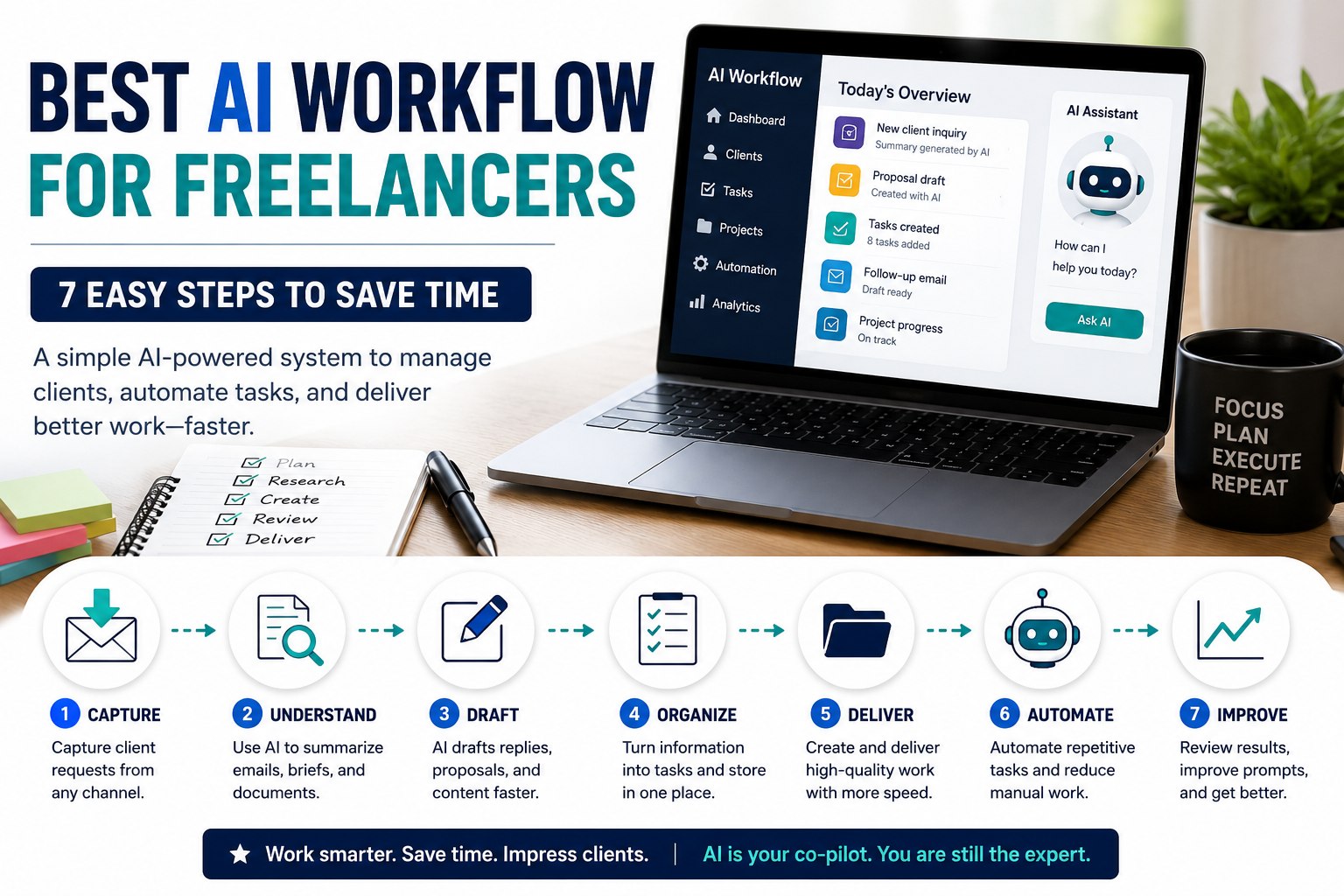
For freelancers, Gmail automation works even better when it is part of a complete AI workflow for freelancers that includes client emails, briefs, tasks, and follow-ups.
What This Gmail AI Workflow Does
By the end of this guide, you will understand how to build a simple AI email automation system that can:
- Detect specific types of incoming emails
- Sort emails using Gmail labels
- Send selected email content to an AI tool
- Generate a contextual draft reply
- Save the reply as a Gmail draft for your review
- Mark the original email as handled or ready for review
The safest version of this workflow does not automatically send emails.
Instead, it follows this structure:
Gmail receives email → Gmail label/filter identifies it → AI writes draft → Gmail saves draft → you review and send
This gives you speed without losing control.
Gmail supports filters and labels, which makes it possible to automatically organize incoming messages before they reach your automation workflow. Google’s Gmail documentation explains that filters can apply labels to matching emails automatically.
Tools You Need
You do not need every tool in this list. Start with one simple setup and expand later.
Gmail
Gmail is where the workflow starts and ends.
You will use Gmail to:
- receive emails
- create labels
- filter incoming messages
- store AI-generated draft replies
- review replies before sending
For this workflow, labels are very important because they help control which emails are processed by AI.
Automation Tool
You need an automation platform to connect Gmail with your AI tool.
Good options include:
- Zapier — easiest for beginners
- Make — visual workflow builder with more control
- n8n — flexible option for technical users or self-hosted workflows
Zapier supports Gmail and ChatGPT/OpenAI workflows, including automations that create Gmail drafts from AI-generated email copy. Make supports Gmail and OpenAI workflow automation between its app modules. n8n also supports Gmail and OpenAI integrations, and its Gmail node can work with messages, drafts, labels, and threads.
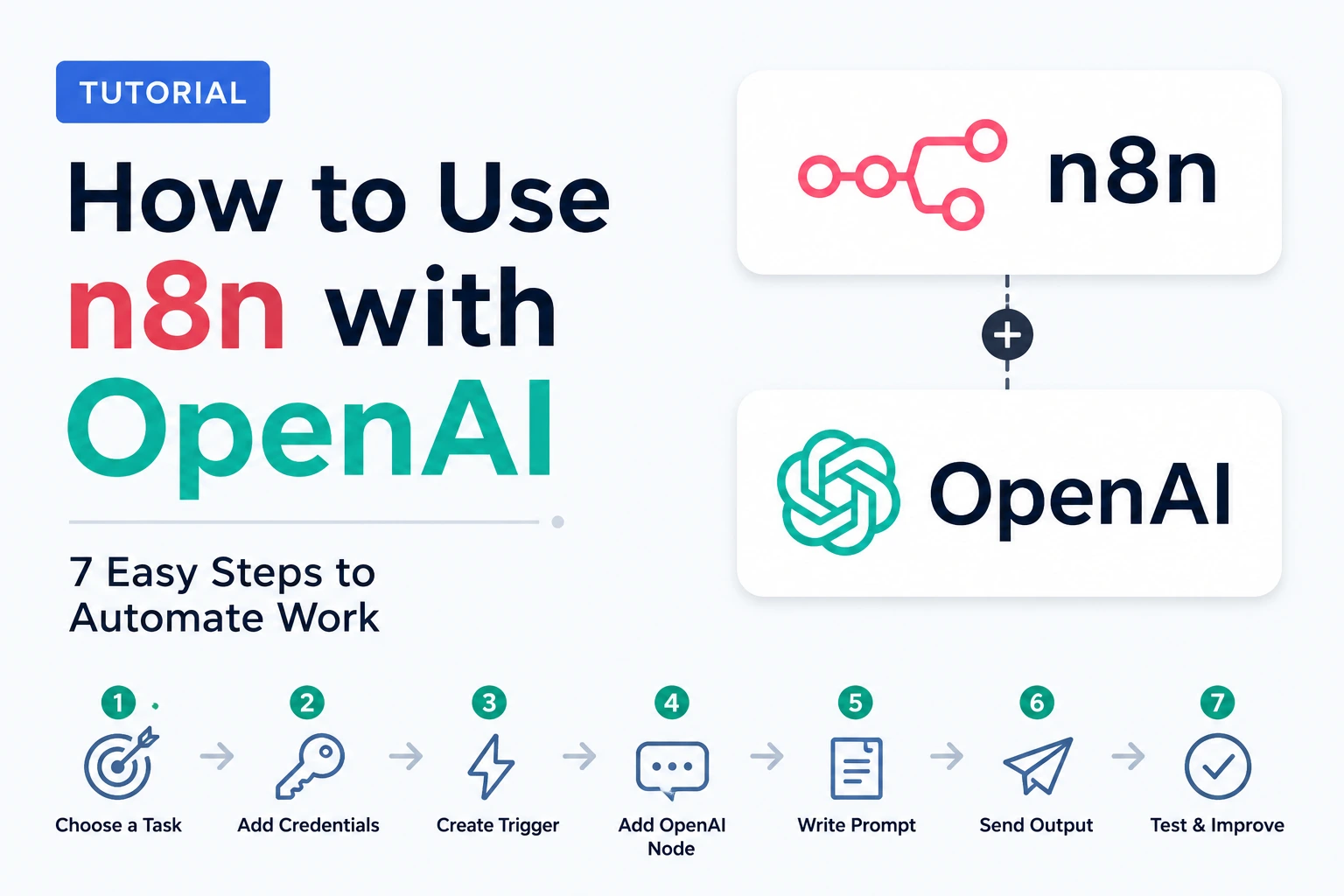
Once your Gmail workflow is clear, you can also learn how to use n8n with OpenAI to connect Gmail with other tools and build more advanced AI automations.
AI Tool
The AI layer reads the email and creates a suggested reply.
Common options include:
- OpenAI API
- ChatGPT inside Zapier or Make integrations
- Claude API
- Gemini or another AI model supported by your automation platform
For most beginners, the easiest path is to use an automation platform with a built-in AI action. More advanced users can connect directly to an AI API.
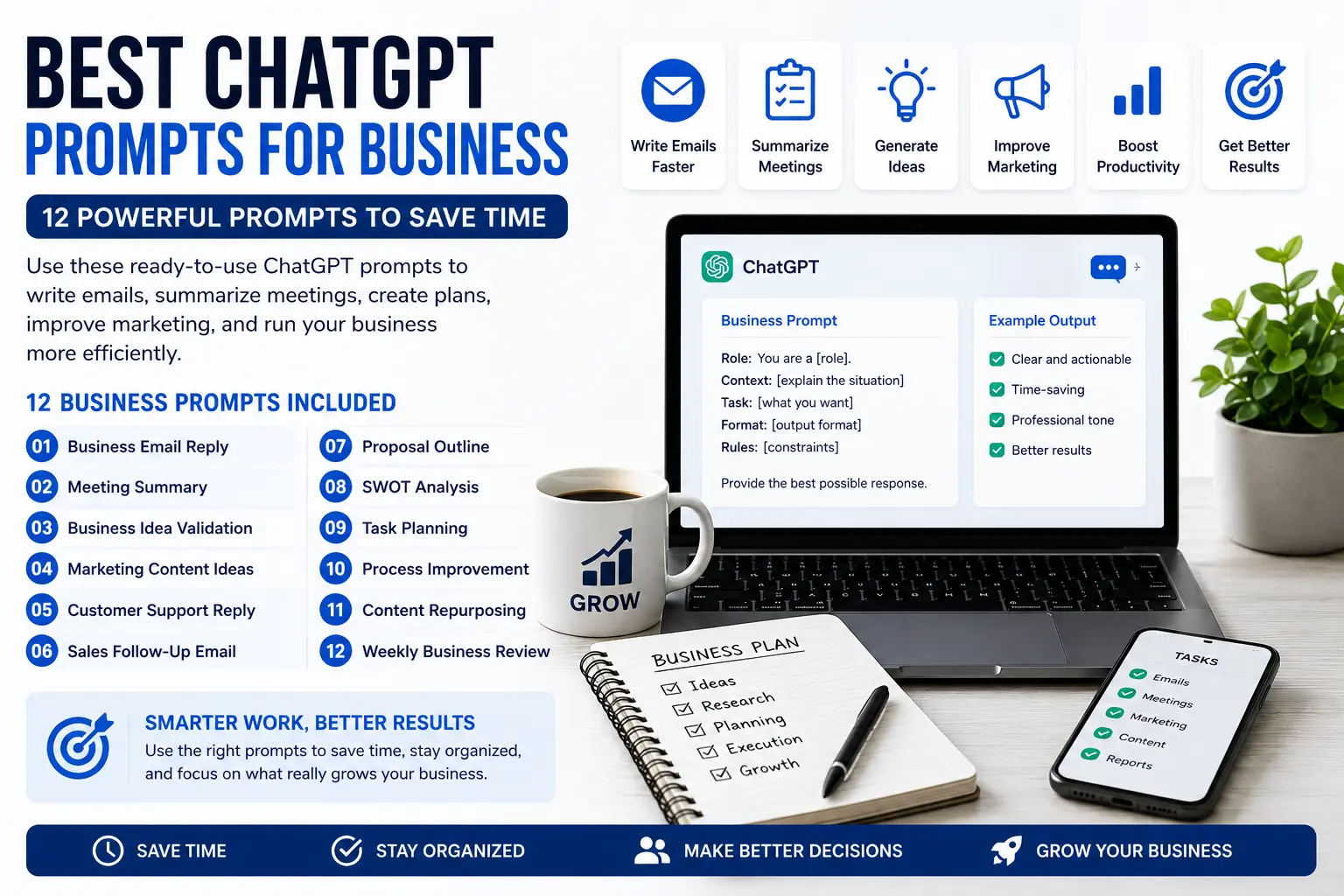
If you want better AI-generated replies, you can also use these best ChatGPT prompts for business to create clearer email drafts, follow-ups, and customer responses.
Google Cloud Console
This depends on your setup.
For many no-code workflows using Zapier or Make, you can usually connect Gmail through the platform’s built-in Google authorization process.
For custom setups, self-hosted n8n workflows, or direct Gmail API configurations, you may need to configure access through Google Cloud Console.
So the correct rule is:
You may need Google Cloud Console for advanced or custom Gmail API setups, but not every beginner workflow requires it.
Before You Start: Create Gmail Labels and Filters
Before connecting AI, you should decide which emails are safe and useful to automate.
Do not start by automating your entire inbox.
Start with one email type, such as:
- client inquiries
- support questions
- booking requests
- collaboration requests
- project follow-ups
- invoice reminders
- sponsorship requests
Then create a Gmail label for that type of email.
Example labels:
AI DraftClient InquirySupport RequestNeeds ReplyFollow UpSponsorship
For example, if your website contact form sends emails with the subject line “New project inquiry,” you can create a Gmail filter that automatically applies the label Client Inquiry.
This gives your automation a clean trigger.
Instead of telling AI to process everything, you tell it:
Only process emails with this specific label.
That is safer, cheaper, and easier to control.
The easiest way to understand how to automate Gmail with AI is to think of it as a controlled workflow, not a fully automatic inbox.
Step-by-Step Guide: How to Automate Gmail with AI
Step 1: Choose One Email Type to Automate
Start small.
Pick one type of email that you receive often and answer in a similar way.
Good beginner examples:
- “Can you send your pricing?”
- “Are you available for a project?”
- “Can we book a call?”
- “I need help with this service.”
- “Can you send more details?”
Avoid automating emails that involve:
- legal issues
- financial decisions
- private client information
- angry customers
- negotiation
- sensitive personal data
Your first Gmail AI workflow should handle simple, repetitive emails only.
Step 2: Create a Gmail Filter
Go to Gmail and create a filter for the email type you want to automate.
You can filter by:
- sender email
- subject line
- words inside the message
- emails sent to a specific address
- website form notifications
Example:
If your contact form sends emails with the subject:
New inquiry from website
Create a filter where:
- Subject contains:
New inquiry from website - Apply label:
AI Draft
This means only these emails will be selected for AI processing.
Step 3: Create a New Automation Workflow
Open your automation tool: Zapier, Make, or n8n.
Create a new workflow with Gmail as the trigger.
The trigger should be based on one of these:
- new email
- new email matching search
- new labeled email
- new email in inbox with specific conditions
The cleanest setup is usually:
Trigger: New Gmail email with label “AI Draft”
This prevents your workflow from processing newsletters, receipts, notifications, or personal emails.
Step 4: Extract the Email Data
After the trigger runs, you need to send the important email details to the AI tool.
Use these fields:
- sender name
- sender email
- subject line
- plain text email body
- received date
Use the plain text version of the email body when possible. HTML email bodies can include formatting code, tracking elements, and unnecessary text that can confuse the AI model.
The AI does not need the full email design. It needs the message content.
Step 5: Send the Email to the AI Model
Now add an AI step.
This can be:
- OpenAI action
- ChatGPT action
- Claude action
- HTTP request to an AI API
- AI module inside Make or n8n
The AI prompt is the most important part of the workflow.
Use a prompt like this:
You are an email assistant for a freelancer or small business owner.

Your task is to write a professional draft reply to the email below.

Rules:
- Keep the reply clear, polite, and natural.
- Do not invent prices, deadlines, availability, services, or promises.
- If important information is missing, ask a short follow-up question.
- Do not include private assumptions.
- Keep the reply under 180 words.
- Do not send the email. Only write a draft reply.
- If the email is angry, legal, financial, confidential, or unclear, write: "This email needs manual review."

Incoming email:
From: {{sender_name}}
Subject: {{subject}}
Message:
{{email_body}}
This prompt is safer than simply saying:
Write a reply to this email.A good prompt tells the AI what to do, what not to do, and when to stop.
Step 6: Create a Gmail Draft
After the AI generates the reply, the next step is to create a Gmail draft.
This is the recommended option for beginners.
Set the Gmail action to:
Create Draft
Then map:
To→ original sender emailSubject→Re: original subjectBody→ AI-generated draft reply
This gives you a ready-to-review email inside Gmail.
You still open the draft, check it, edit if needed, and send it manually.
This is the safest way to automate email replies with AI because it reduces writing time without removing human judgment.
Step 7: Apply a Review Label
After the draft is created, add another Gmail label to the original email.
Example labels:
AI Draft ReadyNeeds ReviewDraft CreatedHandled by AI
This creates a simple audit trail.
Your workflow becomes:
- Gmail receives a new inquiry.
- Gmail filter applies the label
AI Draft. - Automation detects the label.
- AI writes a draft reply.
- Gmail saves the draft.
- Gmail applies
AI Draft Ready. - You review and send manually.
This makes the workflow easy to monitor.
Step 8: Add a Manual Review Rule
Never assume the first version of your workflow is perfect.
Add a rule inside your prompt or automation logic:
If the email is unclear, sensitive, emotional, legal, financial, or requires a custom decision, do not draft a normal reply. Mark it for manual review.You can also add an automation branch that labels those messages as:
Manual Review
This prevents risky emails from being handled like simple routine messages.
Step 9: Test With Real Emails
Before using the workflow daily, test it with 5–10 real emails.
Check:
- Did the correct emails trigger the workflow?
- Did the AI understand the email?
- Did the draft sound professional?
- Did it avoid inventing details?
- Was the reply too long or too short?
- Was the Gmail draft created correctly?
- Was the review label applied?
You will probably need to adjust the prompt several times.
This is normal.
The quality of an AI email workflow depends heavily on the quality of your prompt and filters.
Step 10: Improve the Workflow Gradually
Once the basic version works, you can improve it.
Possible upgrades:
- separate workflows for different email types
- different prompts for support, sales, and follow-ups
- automatic email summaries
- Slack or Telegram alerts for urgent emails
- Google Sheets log of processed emails
- CRM updates for client inquiries
Do not add these too early.
Start with one simple workflow:
Selected Gmail emails → AI draft → manual review
That is enough to save real time.
Practical Example: Freelancer Client Inquiry Workflow
Imagine Maya runs a small freelance design studio.
Every week, she receives project inquiry emails from potential clients. Most of them ask similar questions:
- Are you available?
- How much does a logo or website cost?
- Can you send examples?
- How long does the project take?
- Can we schedule a call?
Instead of writing every first reply from scratch, Maya creates a Gmail AI workflow.
Her setup:
- Her website contact form sends inquiries to Gmail.
- Gmail applies the label
Client Inquiry. - Her automation tool detects new emails with that label.
- The email content is sent to an AI model.
- The AI writes a short draft reply.
- Gmail saves the reply as a draft.
- Maya reviews and sends the final email.
Her AI prompt includes business context:
Business context:
Maya is a freelance graphic designer. She helps small businesses with brand identity and website design. She does not provide fixed pricing before understanding the project scope.

Reply style:
Friendly, professional, concise.

Reply goal:
Thank the lead, ask for project details, timeline, and budget range, and suggest a discovery call if the project seems relevant.
A draft reply might look like this:
Hi [Name],

Thanks for reaching out. I’d be happy to learn more about your project.

Could you send me a few details about what you need, your preferred timeline, and your approximate budget range? Once I understand the scope, I can suggest the best next step and let you know whether a discovery call makes sense.

Best,
Maya
This does not replace Maya.
It simply removes the repetitive first draft so she can respond faster and focus on real client decisions.
Common Mistakes to Avoid
1. Automating Your Entire Inbox
Do not trigger AI on every new email.
Your inbox includes newsletters, receipts, notifications, personal emails, and sensitive messages. Processing everything is messy and risky.
Use Gmail labels and filters to control exactly which emails AI can see.
2. Sending AI Replies Automatically Too Early
Auto-send sounds attractive, but it can damage trust if the AI misunderstands an email.
For beginners, always create drafts first.
Only consider auto-send for very low-risk, predictable emails after weeks of testing.
3. Using a Weak Prompt
A vague prompt creates generic replies.
Bad prompt:
Reply to this email.Better prompt:
Write a polite draft reply under 180 words. Do not invent prices, deadlines, or promises. If information is missing, ask one clear follow-up question.The more precise the rules, the safer the output.
4. Ignoring Privacy
Do not send sensitive email content to AI tools unless you understand how your tools handle data.
Avoid using AI automation for emails that include:
- passwords
- bank details
- contracts
- medical information
- legal issues
- private client documents
- personal identification data
For business use, always review the privacy policy and data handling rules of your automation and AI providers.
5. Forgetting Error Handling
Sometimes an automation can fail.
The AI API may return an error. Gmail may not connect. A workflow step may break.
Add a fallback label like:
Needs Manual Reply
This way, if something fails, the email does not disappear from your process.
6. Not Reviewing the Output
AI can write useful drafts, but it can also miss tone, context, or details.
Before sending, always check:
- names
- dates
- prices
- promises
- attachments
- next steps
- tone
AI should speed up your workflow, not replace your judgment.
Best Practices for Gmail AI Automation
Start With One Workflow
Do not build five automations at once.
Start with one clear workflow, such as:
Client inquiry → AI draft reply → review label
Once that works, build the next one.
Use Separate Prompts for Different Email Types
A client inquiry needs a different reply than a support request.
Create separate workflows or prompt variations for:
- client inquiries
- support emails
- follow-ups
- booking requests
- collaboration requests
Focused prompts create better replies.
Keep Replies Short
Short drafts are easier to review and less likely to contain mistakes.
For most first replies, 100–180 words is enough.
Add Business Context
Your AI prompt should include basic business context.
Example:
I am a freelance web designer. I help small businesses build WordPress websites. I do not give exact prices before understanding project scope.This helps the AI avoid wrong assumptions.
Review Drafts in Batches
Do not check drafts every five minutes.
Let drafts collect, then review them in one focused email session.
This is where the real productivity benefit appears.
Monitor Usage
If you use an AI API, check your usage dashboard regularly.
This helps you avoid unexpected costs, especially if your Gmail trigger is too broad.
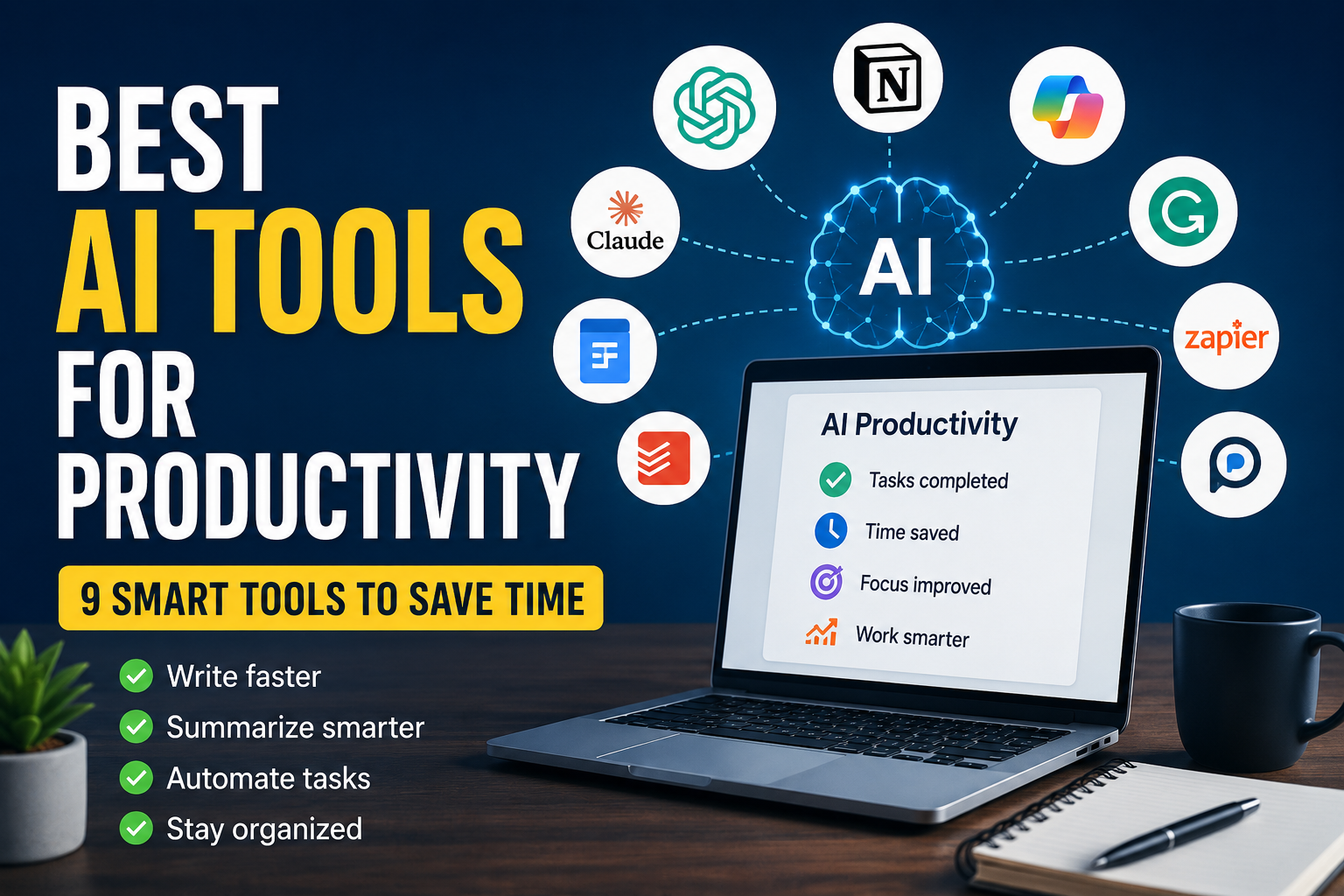
Gmail is only one part of a productive AI setup, so it helps to combine it with the best AI tools for productivity for writing, research, tasks, and automation.
Privacy and Safety Rules
AI email automation is useful, but email often contains private information.
Use these rules:
- Do not process sensitive emails through AI by default.
- Do not allow AI to auto-send client emails in the beginning.
- Do not include passwords, financial data, or confidential documents in AI prompts.
- Do not let AI invent policies, prices, deadlines, or legal answers.
- Do not use one general workflow for every message.
- Always test with real examples before relying on the system.
For most freelancers and small businesses, the best setup is:
AI drafts the reply. You approve the reply.
That is the correct balance between automation and control.
FAQ
Can I automate Gmail with AI without coding?
Yes. Tools like Zapier, Make, and n8n let you create Gmail AI workflows visually. You mainly connect accounts, choose triggers and actions, map email fields, and write a prompt.
Can ChatGPT reply to Gmail emails automatically?
ChatGPT or an AI model can generate Gmail replies when connected through an automation platform or API. For safety, the better beginner setup is to create Gmail drafts first instead of sending replies automatically.
What is the safest way to automate Gmail with AI?
The safest workflow is: Gmail label → automation trigger → AI draft reply → Gmail draft → manual review. This helps you save time while still checking every message before it is sent.
Do I need Google Cloud Console to automate Gmail with AI?
Not always. Some no-code tools handle Gmail authorization through their own connection process. You may need Google Cloud Console for custom Gmail API setups, advanced OAuth configuration, or self-hosted workflows.
What types of emails are best for Gmail AI automation?
The best emails are repetitive and low-risk, such as client inquiries, booking requests, support acknowledgments, follow-ups, and simple FAQ-style messages.
What emails should not be automated with AI?
Avoid automating emails involving legal issues, financial decisions, private documents, sensitive personal information, emotional complaints, or complex negotiations.
How much does Gmail AI automation cost?
The cost depends on the automation platform, email volume, and AI provider. Some tools offer free tiers, but API usage and higher-volume automation may require a paid plan. Always check current pricing before scaling the workflow.
Can I use this workflow with n8n instead of Zapier or Make?
Yes. n8n is a strong option if you want more control, self-hosting, or more advanced workflow logic. Beginners may find Zapier or Make easier at first, while technical users may prefer n8n.
Conclusion
Learning how to automate Gmail with AI is not about handing your inbox to a robot. It is about building a controlled system that removes repetitive email work while keeping you in charge.
The best beginner workflow is simple:
Gmail filter → label → AI draft → Gmail draft → manual review
Start with one email type, such as client inquiries or support requests. Create a Gmail label, connect it to an automation tool, write a clear AI prompt, and save the output as a draft.
Once the system works reliably, you can expand it to more email categories.
Your next step is simple: open Gmail, choose one repetitive email type, and create a label for it. That label becomes the starting point of your first AI email automation workflow.
Once you know how to automate Gmail with AI safely, you can expand the same system to support emails, client inquiries, and follow-ups.